How do you catalogue a home library without giving up halfway?
The short answer: to catalogue a home library without giving up, choose one method before you start, work one shelf at a time so you always have a clear stopping point, set books with no barcode aside and add them last, and decide where the finish line is. Record the basics first (title, author, how you own it) and skip the rest until you need it.
Most people who set out to catalogue a home library stall in the second week. The first shelf feels good. By the fourth, the pile of awkward books has grown, the spreadsheet has too many columns, and the job has no end in sight. The fix is not more willpower. It is a smaller job with a clear edge. Here is how to set that up.
Step 1: Pick one method and stay with it
Switching tools halfway is the quiet way catalogues die. Choose once, and choose the one you will actually open.
| Method | Good for | The catch |
|---|---|---|
| Notebook or index cards | Small collections you enjoy writing out | Slow to search, and hard to fix once a page is full |
| Spreadsheet | People who want total control over the columns | You type every row, and it is tempting to add columns you never fill |
| App with scanning and lookup | Larger shelves, where lookup does the typing for you | Books with no barcode still need a second route |
Whatever you choose, write down the three or four things you will record for every book before you begin. That one decision prevents most of the drift.
Step 2: Work one shelf at a time
A shelf is a natural unit. It has a start and an end, you can see what is left, and you can stop after any one of them without losing your place.
- Pull one shelf, or one stack of twenty or thirty books. Do not empty the whole room.
- Keep two piles: books you have added, and books that need a second look.
- Stop at the end of a shelf, not in the middle of one.
If your phone camera can read the barcodes, scanning is the quickest way to clear a shelf. We cover it step by step in how to scan your whole bookshelf in one afternoon, so this post does not repeat those steps.
Step 3: Decide what happens to books with no barcode
Older books, small press books and some paperbacks have no barcode that reads. The rule that keeps a catalogue moving is simple: do not stop for them. Put them in the second pile, finish the shelf, and deal with the whole pile at the end in one go. There are three ways to add them:
- By title and author. Type what is on the spine and pick the right match from the results.
- By ISBN. Older books often have the number printed inside, on the copyright page, even when there is no barcode on the back.
- By hand. For anything a database does not know, type the title and whatever else you want. A title is the only thing required.
Step 4: Let search do the typing
This is where Dog-Ear helps most. Tap Add and you get four ways in: Scan Barcode, Search Title / Author, Enter ISBN and Add Manually. Switch the top control to I own it so books go straight into your library.
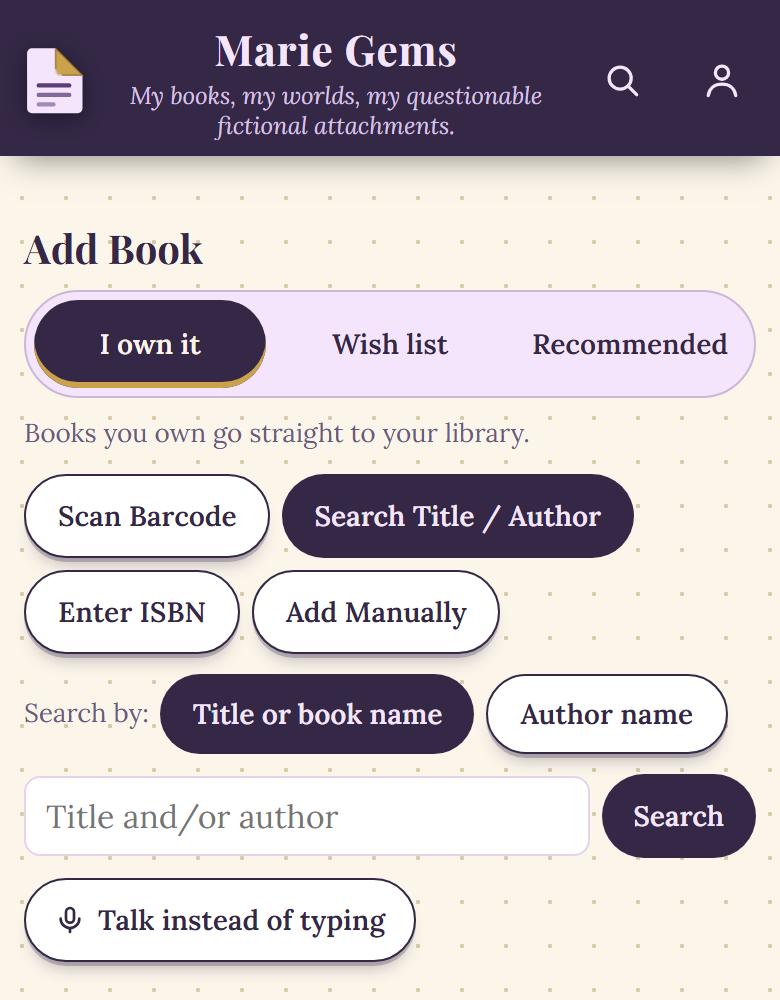
The Add Book screen with Search Title / Author open, in a sample library.
Add many books by one author. Under Search Title / Author, choose Author name and type an author. Dog-Ear lists that author's books as a checklist with covers. Tick the ones on your shelf, or tap Select all, then add them in one tap. If you type a person's name while on Title, Dog-Ear may offer to switch to the author list for you.
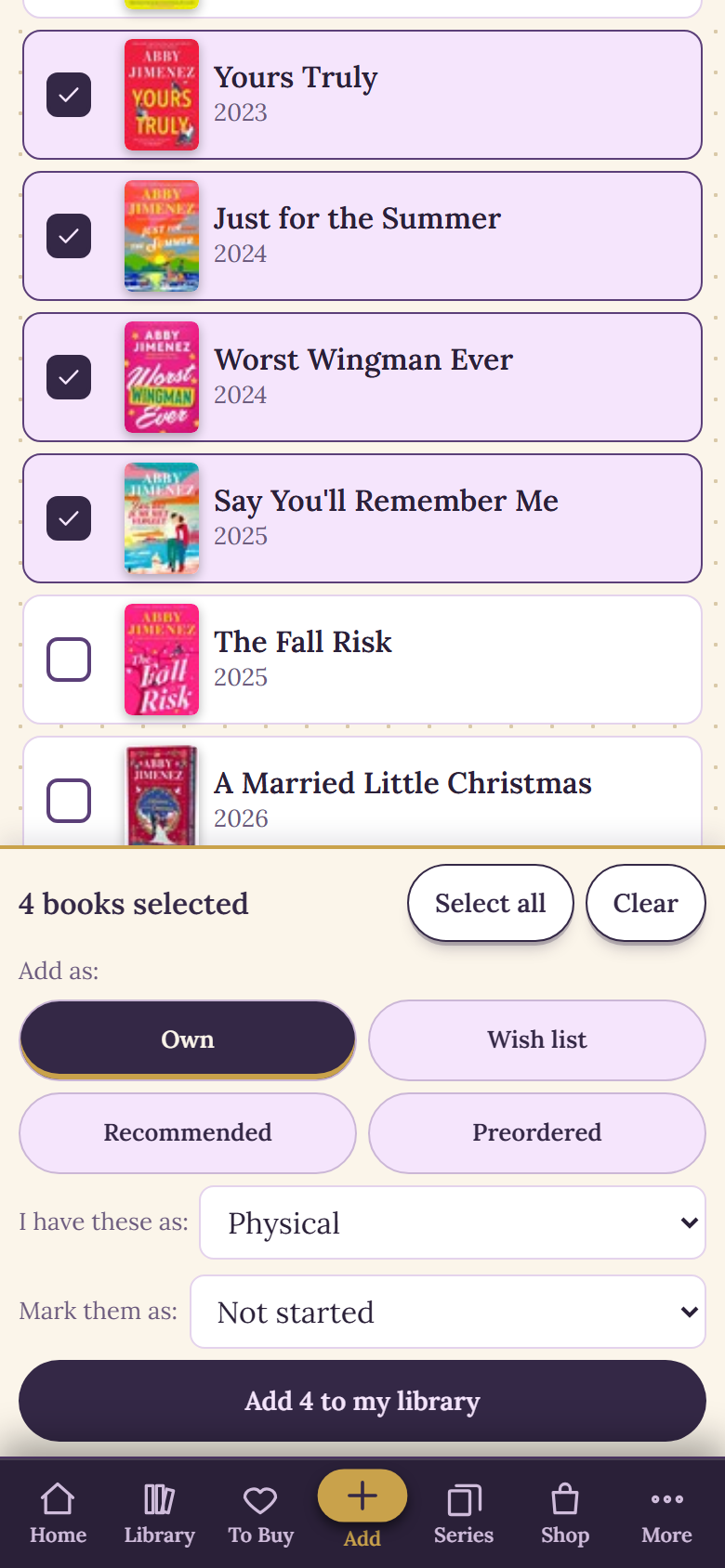
Four books ticked from an author's list, ready to add. This is a sample library, and the list comes from the book databases Dog-Ear searches.
- Choose what they are. Add as Own, Wish list, Recommended or Preordered, and pick the format (such as Physical) and whether they are Read or Not started.
- Duplicates are handled. Books you already have show as Owned and cannot be ticked again.
- Box sets and extras are tucked away behind a switch, so a long list stays readable.
Check the list against your actual shelf. It comes from public book databases, so a title can be missing, and an edition or year can be off.
Bring in a list you already have. If your books already live in a spreadsheet, a Goodreads export or a plain typed list, use More, then Import a list. It takes a CSV file with Title and Author columns, or a list pasted one book per line, such as "Fourth Wing - Rebecca Yarros". It shows a preview before anything is saved, and books you already have are skipped. For the Goodreads route, see how to move from Goodreads to Dog-Ear.
Step 5: Set a finish line
A catalogue that is "done when it is perfect" is never done. Choose an end you can reach:
- Done means every book is in. Details can be improved later.
- Done means every shelf in one room. Call the rest phase two.
- Done means everything that is easy to add. Leave a short "hard cases" list and clear it a few books a week.
Write the finish line on the first page of your notebook or the first tab of your sheet. When you reach it, stop and count it as finished.
What to record, and what to skip
| Record now | Record later, if you will use it | Usually safe to skip |
|---|---|---|
| Title and author | Page count | Purchase price |
| How you own it (physical, ebook, audiobook, borrowed) | Genre | Exact printing details |
| Whether you have read it | Finish date, for books you have read | Long notes on every book |
| Series name and number, if there is one | Edition, and a photo of your copy | Anything you cannot find in a minute |
Tidy up once the books are in
Open Library Check-up from the More menu. It lists what your library is missing, with a box on each row to fix it: books with no page count, books marked read with no finish date, books with no genre, and covers to check. There is a Look them all up button for page counts, and you can set one finish date for several books at once.
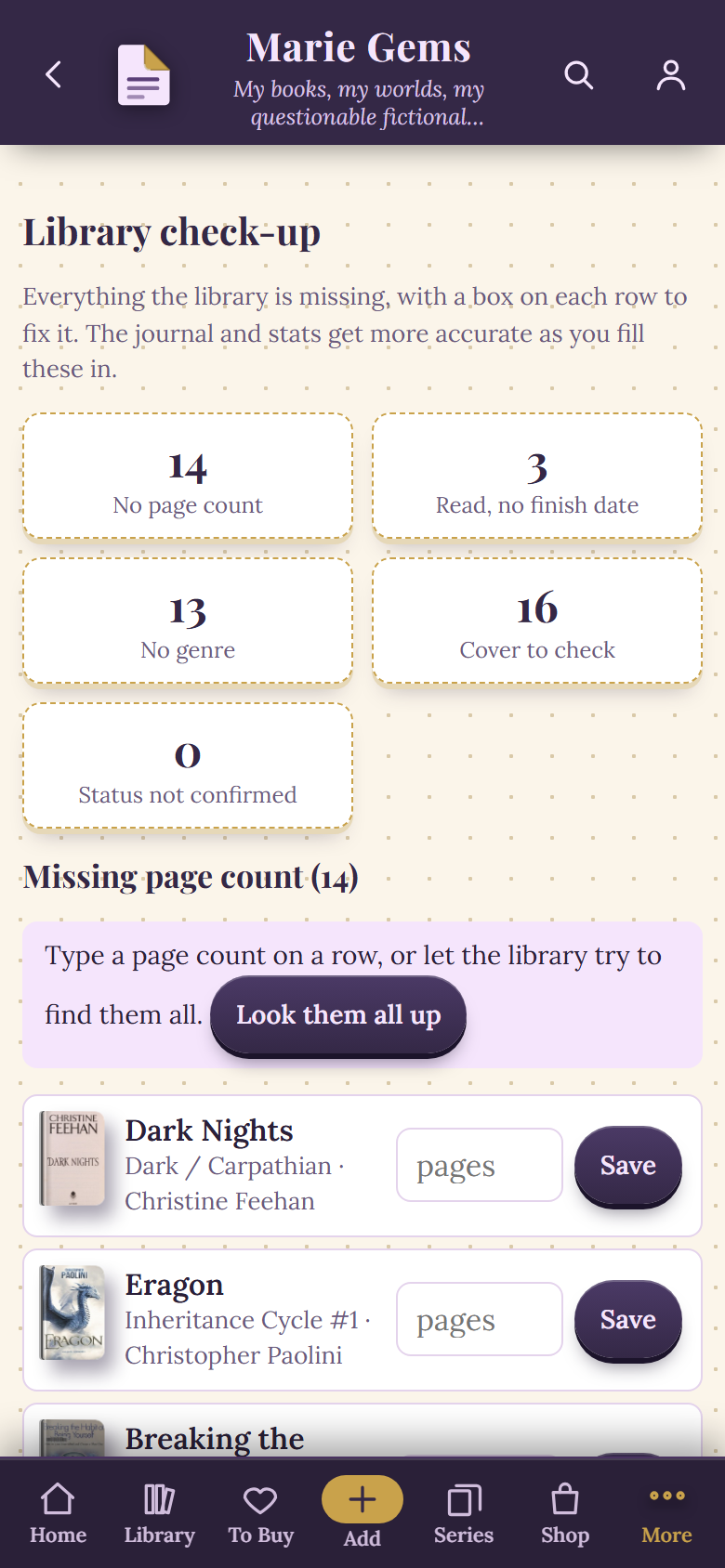
The Library Check-up in a sample library, with its counts of what is missing.
For covers, open Cover Review. You can approve each cover, or choose another edition if the picture does not match your copy. If your copy is a special edition, you can also add photos of it, which we cover in special editions and photos of your own copy. Once it is all in, organising a bookshelf you want to look at is the fun part.
When this is not for you
- You have a few dozen books. A notebook page or a note on your phone is enough.
- You already keep a spreadsheet you like. Keep it. Import it into Dog-Ear only if you want covers, series and a reading journal.
- You have well over fifty books and want to stay on the free plan. The free plan holds 50 books, and wish list and recommended books count toward that. Here is what the free plan covers.
Dog-Ear needs an internet connection to look books up. How long a shelf takes depends on how many books you have and how easily they are found.
Finish the catalogue this month
Search by author, scan what has a barcode, import what you already have. $29, one time, no subscription.
Get Dog-Ear for $29Questions
How do I catalogue my home library?
Pick one method (a spreadsheet, a notebook or an app), then work one shelf at a time. Record the basics first: title, author and how you own it. Put books with no barcode in a separate pile and add them last, and set a finish line so the job has an end.
How long does it take to catalogue a home library?
It depends on how many books you have, how many have a barcode that scans, and how much you record for each one. Working one shelf per sitting keeps each session short, and a few short sessions are easier to finish than one long one.
What do I do with books that have no barcode?
Set them aside while you work through the rest of the shelf. Then add them by title and author, by ISBN if there is one printed inside, or by typing the details yourself. In Dog-Ear that means Search Title / Author, Enter ISBN or Add Manually.
What should I write down for each book?
The title, the author and how you own it (physical, ebook, audiobook or borrowed) are enough to start. Add page count, genre, edition and finish date later, and only if you will use them.
Can I add several books by one author at once in Dog-Ear?
Yes. Open Add, choose Search Title / Author, switch to Author name, and type the author. Dog-Ear shows that author's books as a checklist. Tick the ones you own, or tap Select all, and add them in one go.
Related: How to scan your whole bookshelf, How to move from Goodreads to Dog-Ear, How to track book series you own, How to back up your reading list.