How to scan your whole bookshelf in one afternoon with Rapid Scan
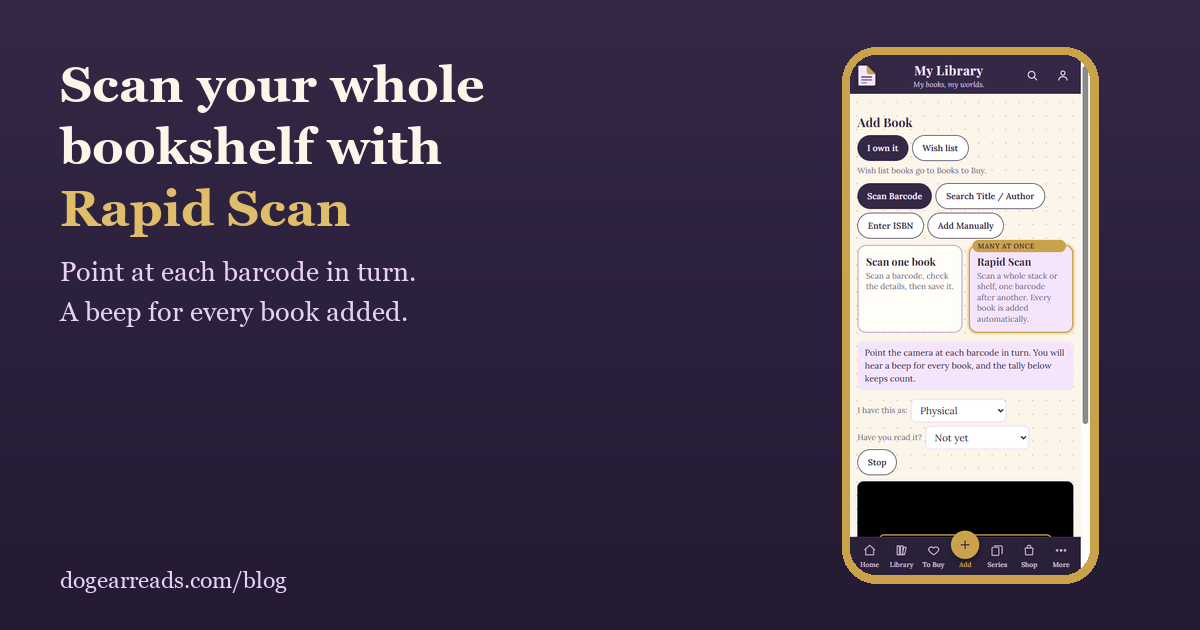
The short answer: to catalog a bookshelf by scanning, open Dog-Ear, tap Add, choose Scan Barcode, pick Rapid Scan, and point your phone's camera at each book's barcode in turn. Dog-Ear adds every book automatically, beeps for each one, and keeps a running tally, so you can work through a shelf in one sitting.
Typing in a few hundred books by hand is the reason most home libraries never get cataloged. Scanning fixes that. Almost every book has a barcode on its back cover, and your phone's camera can read it.
Before you start
- Your phone and a connection. Dog-Ear looks up each book as you scan it, so you need an internet connection.
- Good light. Bright, even light makes barcodes read faster.
- A manageable pile. Pull one shelf at a time, or stack twenty or thirty books beside you, with the back covers up.
- A standard book barcode. Dog-Ear reads the long barcode that starts with 978 or 979. Many older books have no barcode, or an older one that will not scan, and those need adding another way (see below).
Step 1: Open the scanner
In Dog-Ear, tap Add, then Scan Barcode. At the top, make sure I own it is selected, not Wish list.
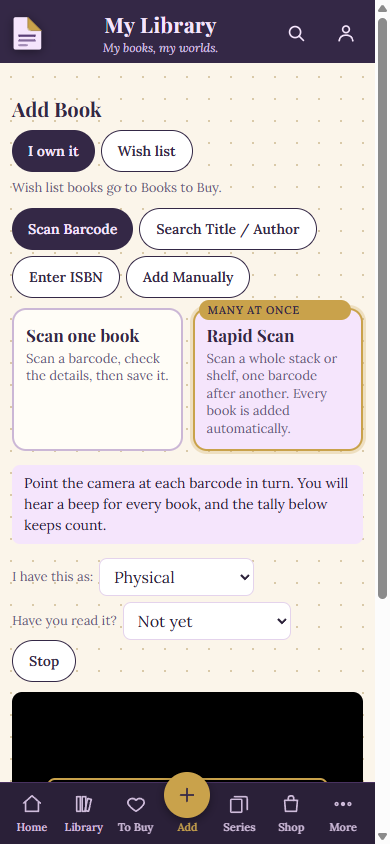
The Add Book screen with Rapid Scan selected, in a test library.
Step 2: Tell Dog-Ear what you are scanning
- I have this as: choose the format, such as Physical.
- Have you read it? If the whole stack is books you have finished, choose "Yes, already read" so they land on your Read shelf. Otherwise leave it on Not yet. You can change any book later.
Step 3: Choose Rapid Scan
Tap the Rapid Scan card. It is the one marked "Many at once", and it says it scans a whole stack or shelf, one barcode after another, adding every book automatically. The other card, Scan one book, stops after each book so you can check the details first.
Step 4: Scan the barcodes
- Tap Start Rapid Scan and allow camera access when your phone asks.
- Point the camera at a barcode. When it reads, you hear a beep and the book is added.
- Move to the next book. A tally below the camera keeps count, and a list shows each book as it is added.
- Tap Stop when you are done.
What if a book will not scan?
| What happens | What to do |
|---|---|
| You already have the book | Dog-Ear skips it and notes it as already owned, so you never get a duplicate. You do not need to do anything. |
| No details found for the barcode | Dog-Ear tells you instead of guessing. Add that book with Search Title / Author, Enter ISBN, or Add Manually. |
| A book needs a look | Dog-Ear flags it rather than adding the wrong edition. Check it after the scan. |
| The camera is blocked | Allow camera access for the site in your browser (the lock icon by the address), then tap Start camera. You can also use Enter ISBN. |
| No barcode on the book | Use Search Title / Author, or Add Manually. |
Tips for a faster shelf
- Scan one shelf at a time. It is easier to see what is left, and to spot a book you missed.
- Fill the frame and hold steady. A barcode that is sharp and large reads quickest.
- Tilt away from glare. Glossy covers bounce light. A small tilt usually clears it.
- Listen for the beep. No beep means that book was not read yet.
- Stack in order. If you place scanned books in a second pile, you always know what is done.
After you scan
- Covers: most are found automatically. Open Cover Review to check any that need a look.
- Series: open the Series page to see your books grouped into series. Here is how it shows what you are missing.
- Gaps: the Library Check-up lists books with no page count, finish date or genre.
- Books you want: switch to Wish list and scan those too. Here is how.
Rapid Scan needs your phone's camera and an internet connection. Books without a standard barcode have to be added another way. How long a shelf takes depends on how many books you have and how easily their barcodes read.
Catalog your shelves this weekend
Scan a whole stack in a row and see your library take shape. $9, one time, no subscription.
Get Dog-Ear for $9Questions
How do I scan multiple books at once?
In Dog-Ear, tap Add, then Scan Barcode, and choose Rapid Scan. Point your phone's camera at each barcode in turn. Every book is added automatically, with a beep for each one and a running tally.
Can I catalog my whole bookshelf with my phone?
Yes. Your phone camera reads the barcode on the back of each book, and Dog-Ear looks up the details and cover. Books without a standard barcode can be added by title, ISBN or by hand.
What if a book has no barcode?
Use Search Title / Author, Enter ISBN, or Add Manually. Many older books have no barcode that will scan.
Will scanning add duplicates?
No. If you already have a book, Dog-Ear skips it and notes it as already owned. Rapid Scan never guesses on duplicates.
Related: How to scan books in a bookstore and save them for later, How to track book series you own, How to move from Goodreads to Dog-Ear.