How to move from Goodreads to Dog-Ear: step by step CSV import
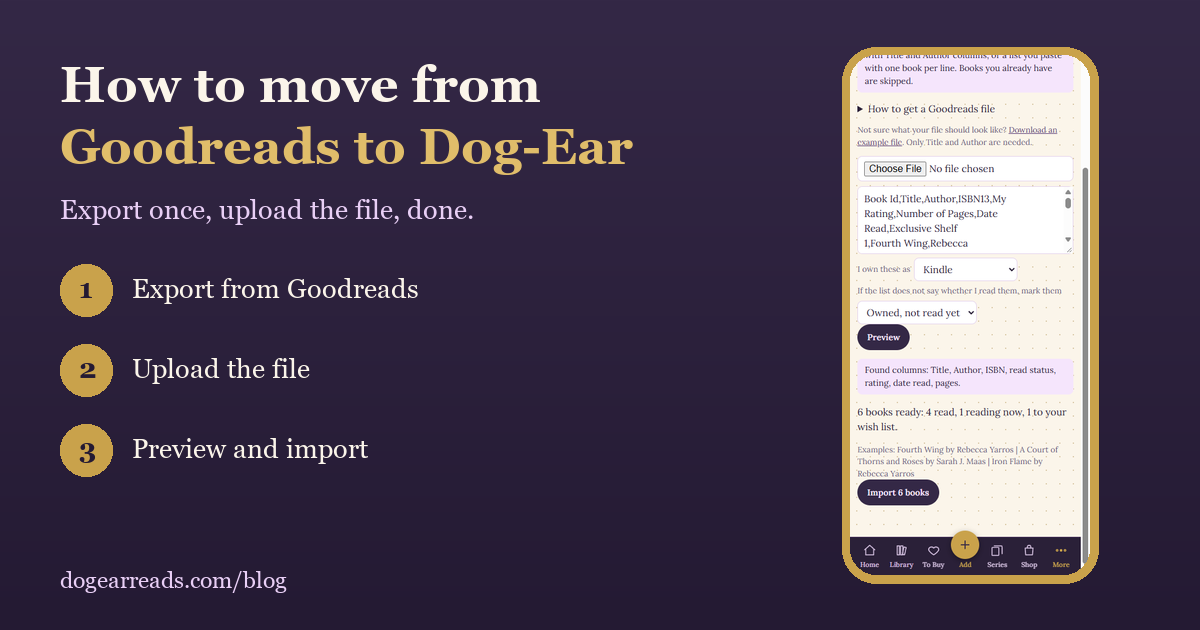
The short answer: export your library from Goodreads as a CSV file (on a computer, My Books, then Import and export, then Export Library), then open Dog-Ear, go to More, then Import a list, choose the file, preview it, and import. Your books, read status, star ratings, finish dates and page counts come across, and you do not have to start over.
Moving a reading history is the part that stops most people from trying a new tracker. The good news is that Goodreads lets you download everything as one file, and Dog-Ear can read it. Here is the whole process.
Before you start
- You need a computer for the Goodreads export. The export option is not in the Goodreads mobile app.
- You need a Dog-Ear account. You can do the import on your phone or your computer.
- Your Goodreads account is not changed or closed by any of this. You can keep using it while you try Dog-Ear.
Step 1: Export your library from Goodreads
- Sign in to Goodreads in a browser on a computer.
- Open My Books from the top navigation.
- In the left column, under Tools, choose Import and export.
- Click Export Library.
- When the export is ready, a dated link appears on the same page. Click it to download the CSV file.
Large libraries can take a little while to prepare. If the link is not there yet, wait a minute and refresh the page. Goodreads changes its menus now and then, but the export is always in the Import and export area.
Step 2: Open the import page in Dog-Ear
In Dog-Ear, tap More, then Import a list. You will see a place to choose a file, a box for pasting a list, and two short questions.
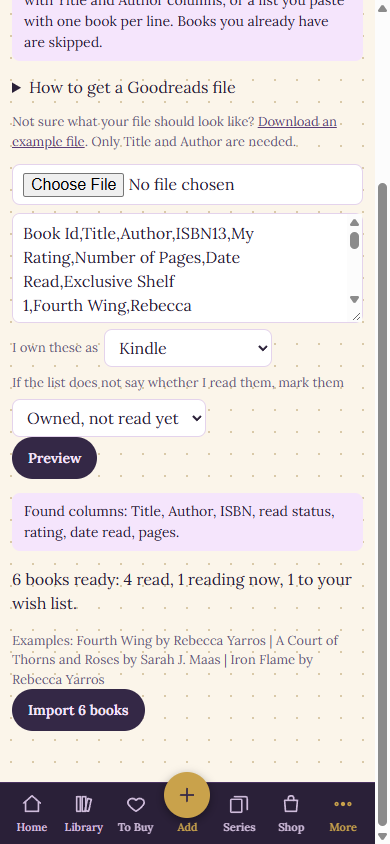
The import page after tapping Preview, using a small sample file.
Step 3: Choose your file and options
- Tap Choose File and pick the CSV you downloaded.
- I own these as: choose how you own them, such as Kindle, Paperback, Hardcover or Audiobook. If you read a lot of borrowed books, choose Borrowed.
- If the list does not say whether I read them: leave it on "Owned, not read yet". A Goodreads file does say, so this mostly matters for plain lists.
Step 4: Preview, then import
Tap Preview. Dog-Ear shows which columns it recognized and how many books it found, split into read, reading now, wish list and did not finish. Nothing is saved yet, so this is your chance to check it looks right. When it does, tap Import.
Dog-Ear imports in small batches and shows its progress. Books you already have are skipped, so it is safe to run the import twice. When it finishes, it goes looking for covers.
What comes across, and what does not
| From your Goodreads file | In Dog-Ear |
|---|---|
| Title and author | Comes across |
| ISBN | Comes across, and helps match the right edition and cover |
| Read, currently reading, did not finish | Comes across as your reading status |
| To-read shelf | Goes to your wish list, not your owned library |
| Star rating | Comes across |
| Date read | Comes across as your finish date |
| Page count | Comes across |
| Written reviews, notes and custom shelves | Not brought across |
Based on how Dog-Ear's import reads the file, as of October 7, 2026. Goodreads can change what its export contains.
After the import
- Covers: most are found automatically. Open Cover Review to check any that need a look.
- Series: open the Series page to see your books grouped into series. For popular series with a verified full list, it also shows what you are missing. Here is how that works.
- Gaps: the Library Check-up lists books with no page count, no finish date or no genre, with a place to fix each one.
Coming from StoryGraph, or no file at all?
- StoryGraph: export your library as a CSV from your account's data export page, then use the same Import a list page. Dog-Ear reads the StoryGraph columns for status, star rating and last date read.
- A spreadsheet: any CSV with a Title column works, and an Author column makes matching better.
- A pasted list: type or paste one book per line, such as Fourth Wing by Rebecca Yarros, and tap Preview.
- Kindle books: Amazon has no export, but if your Kindle books sync to Goodreads, your Goodreads file already includes them.
- Physical books with no list: scan barcodes instead. Rapid Scan lets you scan a whole stack in a row.
Bring your reading history with you
Import your Goodreads or StoryGraph file, then keep your library, series and journal in one private place. $9, one time, no subscription.
Get Dog-Ear for $9Questions
How do I export my Goodreads library?
Use a computer, not the mobile app. Sign in to Goodreads, open My Books, choose Import and export under Tools, and click Export Library. When the export is ready, a dated link appears on the same page. Download it to get a CSV file.
What does Dog-Ear import from Goodreads?
Titles, authors, ISBNs, your read status (read, currently reading, to-read), star ratings, the date you read each book, and page counts. Reviews, notes and custom shelves are not brought across.
Where do my to-read books go?
Books on your to-read shelf go to your Dog-Ear wish list, not your owned library. Books marked read or currently reading are added as books you own.
Can I import from StoryGraph or a spreadsheet?
Yes. Dog-Ear reads a StoryGraph export, any spreadsheet saved as CSV with a Title column, or a pasted list with one book per line, such as Fourth Wing by Rebecca Yarros.
Related: Goodreads alternatives for people who own physical books, Book tracker apps with no subscription and How to track book series you own.