How to back up your reading list and library so you never lose your logging
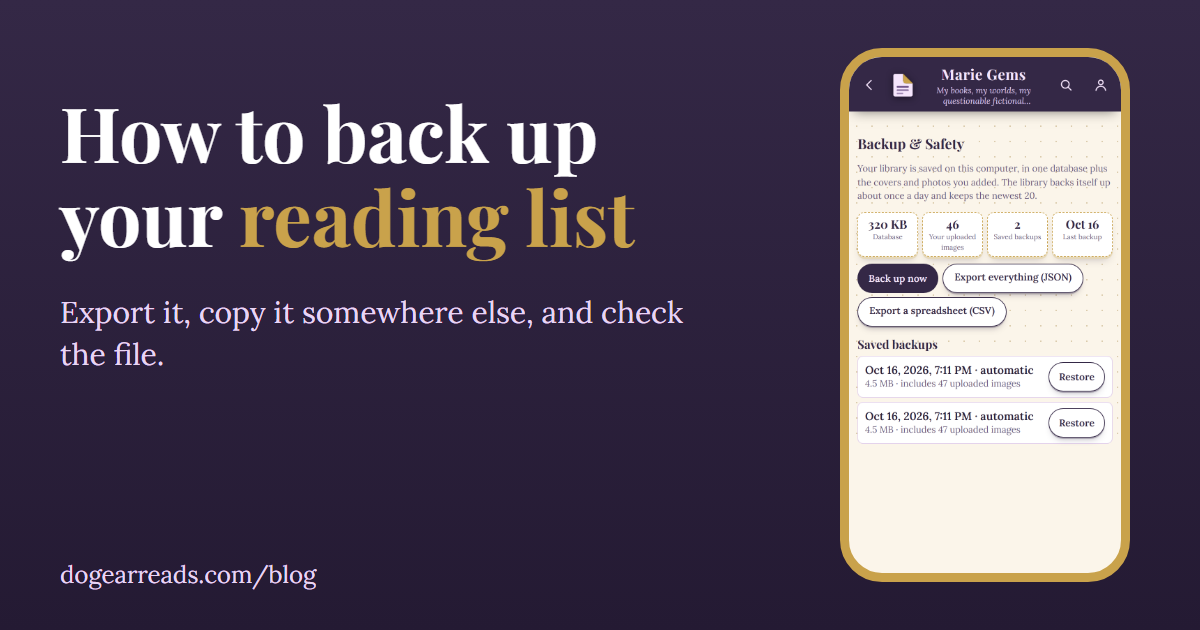
The short answer: To back up your reading list, export it from your app to a file (a spreadsheet CSV is best), save a copy somewhere other than the app, such as a cloud folder or a USB drive, and open the file once to check your books are really in it. Do it again every few months, and always before you switch apps or delete one.
Most readers find out how much their log is worth on the day it disappears: a phone is lost, an app shuts down, or a service changes its rules. A back up of your reading list takes about five minutes, and it works with any app that lets you export.
Step 1: Find the export button
Look in the app's settings, account or profile area for words like Export, Download my data, or Backup. A good tracker lets you get your own data out without asking anyone. If you cannot find one, check the app's help pages, because some apps only offer export on their website, not in the phone app. If an app offers no export at all, that is worth knowing before you log another hundred books in it. If you are leaving Goodreads, here are the steps.
Step 2: Choose the right kind of file
| File type | Good for | Watch out for |
|---|---|---|
| CSV (spreadsheet) | Reading yourself in Excel or Google Sheets, and importing into most other apps | Usually no photos, journal pages or decorations |
| JSON or one big data file | A complete copy of everything the app holds | Hard to read by eye, and another app usually cannot import it |
| PDF or printout | A readable record | Cannot be imported anywhere |
If the app offers both, take both. The CSV is your portable list, and the full file is your safety net.
What a good reading list export contains
- Title and author, the minimum for any import.
- Reading status: read, reading now, want to read, did not finish.
- Rating and dates: when you started and finished. These are the part you cannot rebuild from memory.
- ISBN, if available. It lets a new app match the right edition.
- Page count, series, format and your own notes are a bonus.
Step 3: Keep a copy somewhere else
A backup that lives only inside the app protects you from a slip of the finger, not from losing the account or the device. Save the exported file in a cloud folder, email it to yourself, or put it on a USB drive. Two places is better than one. Name it with the date, such as reading-list-2026-10-16.csv, so you know which one is newest.
Step 4: Check the file
- Open it. A CSV opens in any spreadsheet app.
- Scroll to the bottom and compare the number of rows with the number of books in your app.
- Look at a few books you finished long ago: are the rating and finish date there?
- Check that titles with commas or accents look normal.
A backup you have never opened is a hope, not a backup.
Before you switch apps
- Export first, while your old account still works.
- Check the new app can import the kind of file you exported.
- Import a small sample and look at it before bringing in everything.
- Keep the old export for a few months, even after you are happy.
How to back up your library in Dog-Ear
Dog-Ear has two places for this.
More, then Backup & Safety. This page shows when your last backup was made and lets you tap Back up now. It also has two export buttons: Export a spreadsheet (CSV), which lists each book with its series, status, rating, dates, formats, pages, genres and whether it is on your wish list, and Export everything (JSON), which holds your books, journal entries, quotes and collections as data.
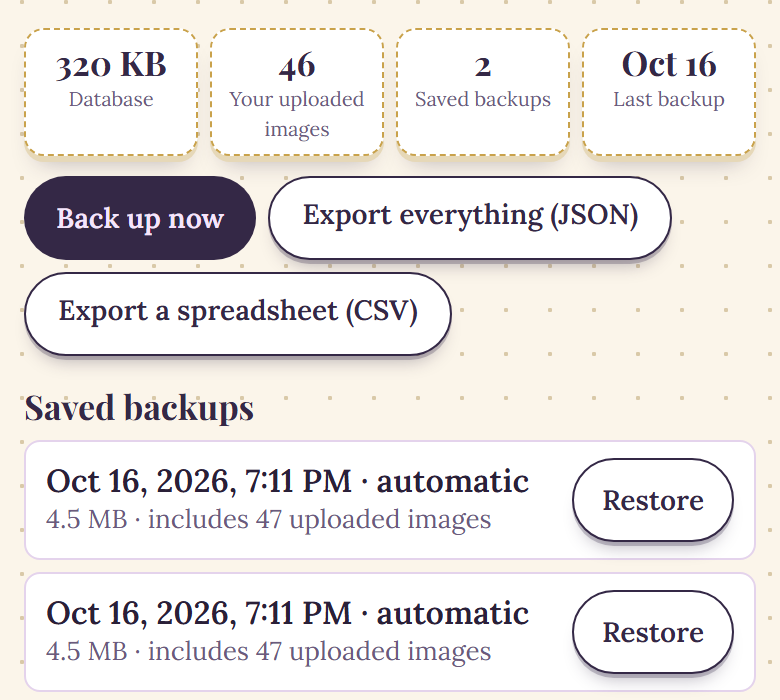
The Backup & Safety page in a sample library.
More, then Account & export. The Download my data button gives you one file with your books, journal, your own photos and covers.
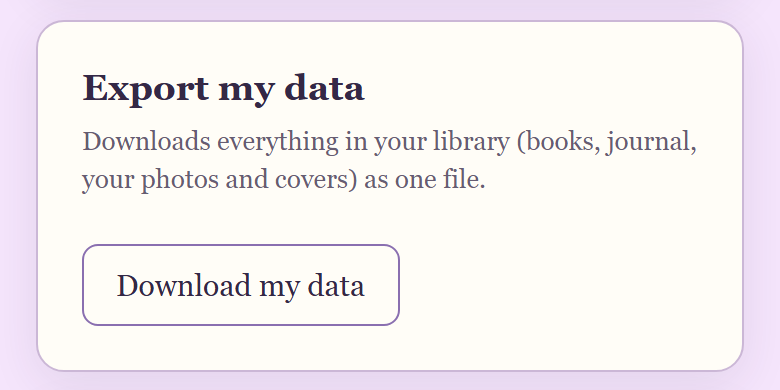
Download my data, on the account page.
Automatic copies and restoring
Dog-Ear also saves your library by itself, about once a day, and keeps the newest 20 of those. It makes a nightly copy of your books and journal as well. Each one appears in the Saved backups list, and tapping Restore next to one asks you to confirm first. Dog-Ear then saves your library as it is right now as a safety backup, so you can undo the restore, and replaces it with the one you picked. Anything you changed since that copy was made is replaced.
These copies are kept alongside your library, so treat them as protection against mistakes. Your own downloaded file in a second place is what protects you from everything else.
Bringing a list back in
Dog-Ear's Import a list page reads a CSV with Title and Author columns, and also picks up status, rating, finish date and page count when those columns are there. It does not read the JSON file, so keep the CSV as your portable copy. Books you already have are skipped, and the free plan holds 50 books, so a large list may only partly come in. If you are moving between apps, see how the Goodreads import works.
When this is not for you
If you track books on a paper list or in a notebook, your backup is a photo of the pages every few months, and you do not need an export at all. If your app syncs to your account and you are happy to trust it, a yearly export is still enough. And if your library holds only a few books, you can rebuild it quickly.
Keep your reading history safe
Dog-Ear saves backups for you and lets you download your whole library any time. $29, one time, no subscription.
Get Dog-Ear for $29Questions
How do I back up my reading list?
Export it from your app as a file, ideally a CSV spreadsheet. Save a copy outside the app, in a cloud folder or on a USB drive, and open the file to check it contains your books, dates and ratings. Repeat every few months.
What should a good reading list export contain?
At least title, author, reading status, rating, and the dates you started and finished. Page count, series, format and your own notes are a bonus. An ISBN column makes it easy to match books in another app.
Can I export my Dog-Ear library?
Yes. Open More, then Backup & Safety, to download a spreadsheet (CSV) or everything as a JSON file. Account & export has a Download my data button that gives you one file with your books, journal, photos and covers.
Does Dog-Ear back up my library automatically?
It saves backup copies of your library by itself, about once a day, and keeps the newest 20, with a nightly copy of your books and journal as well. Those copies are stored with your library, so keep your own exported file too.
Can I restore an older version in Dog-Ear?
Yes. On the Backup & Safety page, tap Restore next to a saved backup. Dog-Ear first saves your library as it is right now as a safety backup, then replaces it with the one you chose, so anything you changed since then is gone unless you undo it.
Related: How to move from Goodreads to Dog-Ear, A free book tracker for 50 books, Reading app: subscription or one time cost, Catalogue your home library without quitting.