How to track special edition books with photos of your own copy
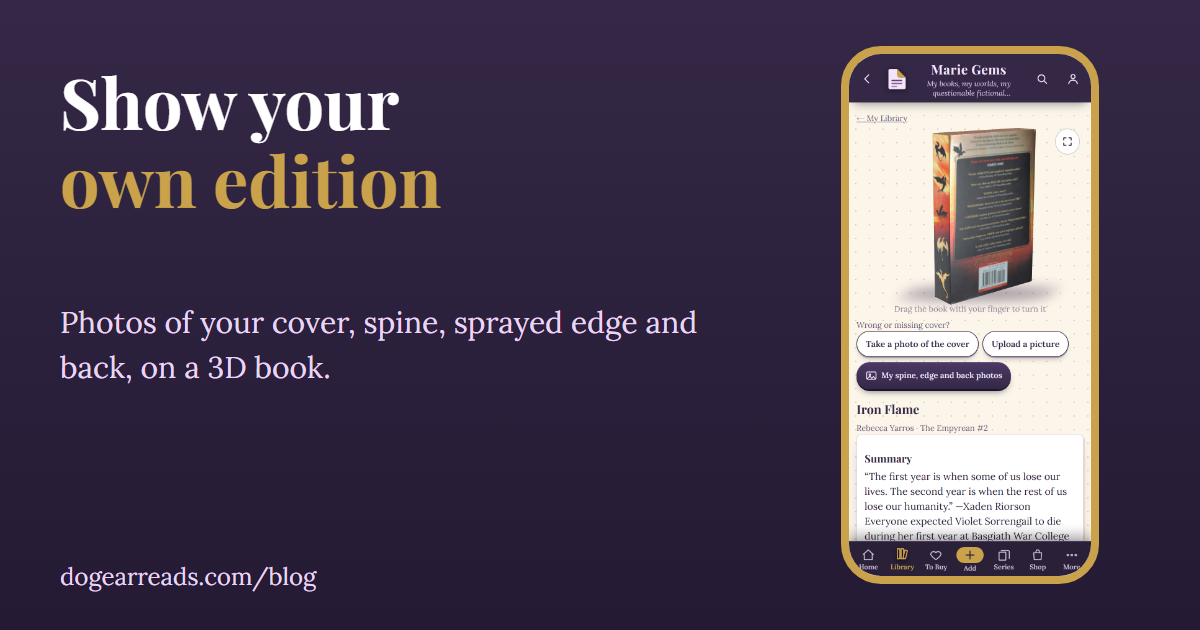
The short answer: to track a special edition properly, add photos of your own copy instead of relying on a database cover. In Dog-Ear you can add a photo of the front cover, spine, page edge and back cover, and they appear on the 3D book and on your shelves, so the book on your screen looks like the one in your hands.
If you own a special edition, you know the feeling. You add the book to a tracker, and up comes a plain stock cover that looks nothing like the sprayed edges, the foil or the alternate artwork on your shelf. This post covers why that happens, what to photograph, and how to show your own edition.
Why a stock cover is not the book on your shelf
Most book trackers look a book up by its ISBN or title and show the cover from a database. That works well for a standard paperback. A special edition is a different object: it can have a different cover, a painted or sprayed page edge, a printed spine, or extras that a database picture never shows.
- The picture is often the standard edition. A database may show one cover for a title, and that may not be yours.
- The edge and spine are missing. A sprayed edge is the point of many special editions, and a flat front cover image cannot show it.
- New and small releases may not be found at all. Very new books, small presses and special editions are sometimes missing from the databases Dog-Ear searches, and the app says so rather than guessing.
The fix is not a better database. It is a photo of your own copy.
What to photograph
| Part | What to capture | Tip |
|---|---|---|
| Front cover | The full cover, straight on | Lay the book flat and shoot from directly above, away from window glare on foil or gloss. |
| Spine | The whole spine, upright | Stand the book up and shoot straight on. Dog-Ear turns a sideways photo upright for you. |
| Page edge | The outer edge of the pages, the side opposite the spine | Stand the book up and take a close photo. Sprayed and painted edges show best in soft, even light. |
| Back cover | The whole back, including any blurbs or printed art | Shoot it the same way as the front. |
You do not need all four. A single edge photo is enough to make a sprayed edge edition look right.
How to add your own photos in Dog-Ear
There are two places to do it, and both use the same four slots.
- While you add the book. When you add a book by title, ISBN or by hand, open Photos of your copy. Each of the four parts has Take photo and Choose from photos. The front cover photo becomes the book's cover.
- Later, from the book's page. Open the book and tap My spine, edge and back photos. The Book artwork card has four tabs: Cover, Spine, Page edge and Back. For each one you can take a photo, upload a picture, turn it, or remove it.
If a book is missing a cover, or has the wrong one, the book's page also offers Take a photo of the cover and Upload a picture.
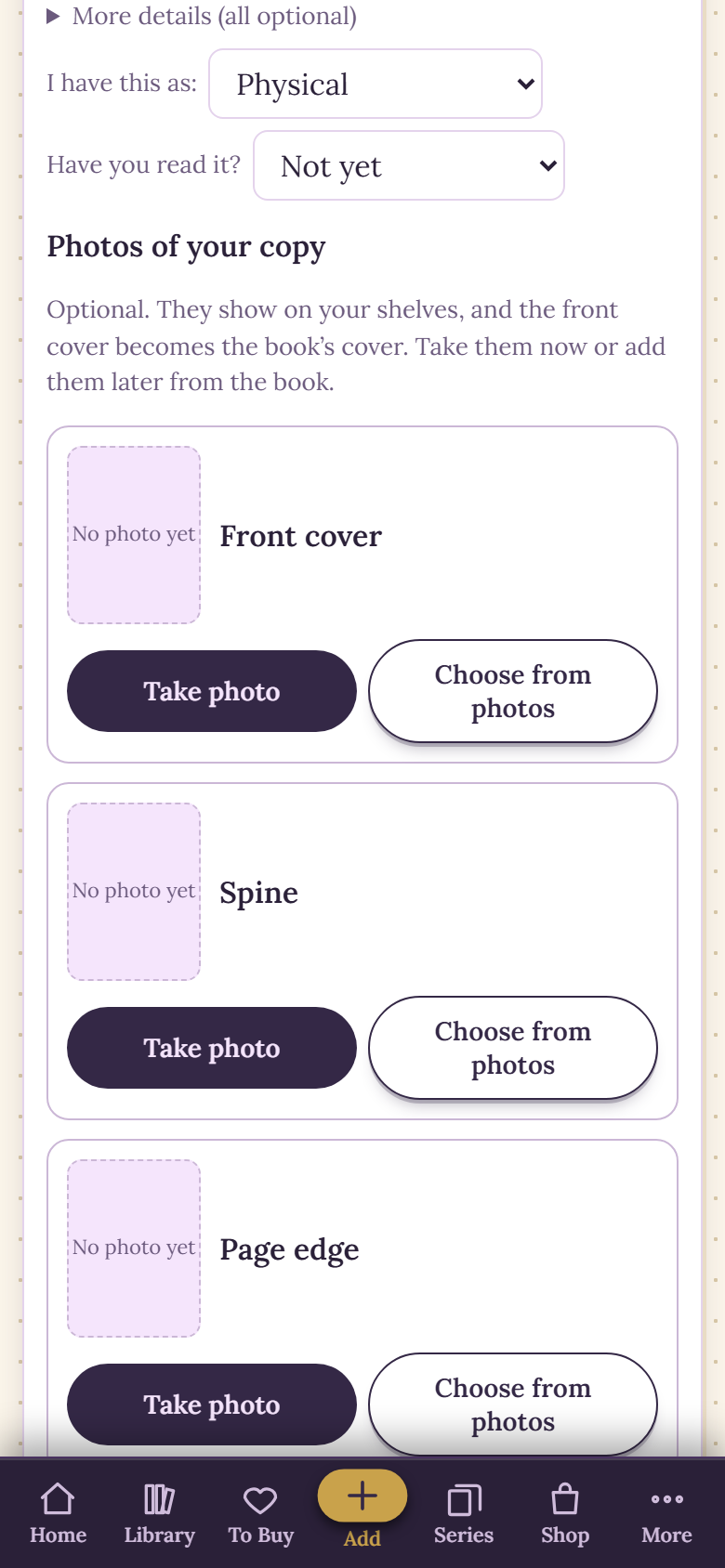
The photo slots on the Add Book form, in a sample library.
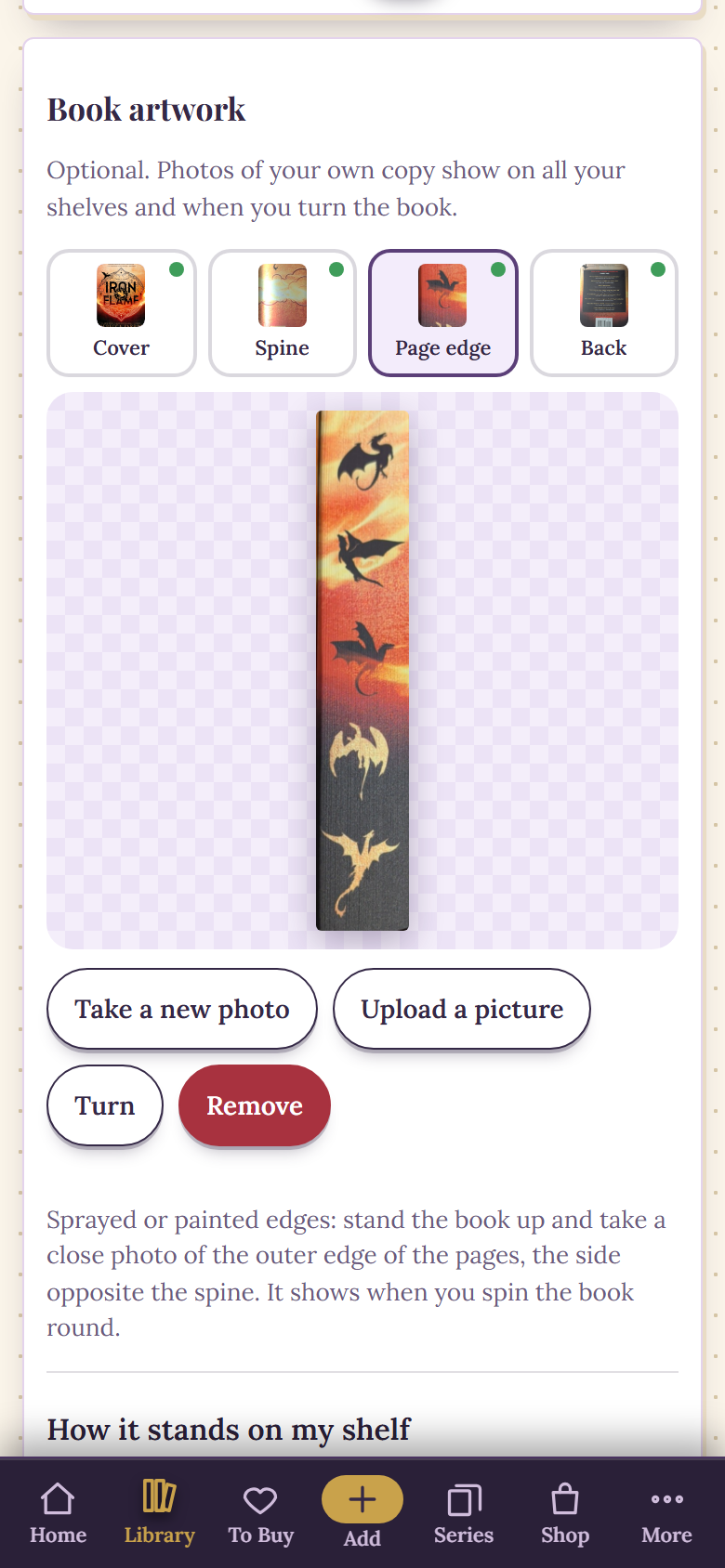
The Book artwork card, with a photographed sprayed edge, in a sample library.
How your photos show on the 3D book and your shelf
Once a book has photos, you see them in two places.
- On the 3D book. The book page shows a 3D copy of the book that you turn by dragging it with your finger. Your spine photo goes on the spine, your edge photo on the outer pages and your back photo on the back.
- On your shelves. Your photos show on every shelf. If you add an edge photo, the top and bottom of the pages take on its color too.
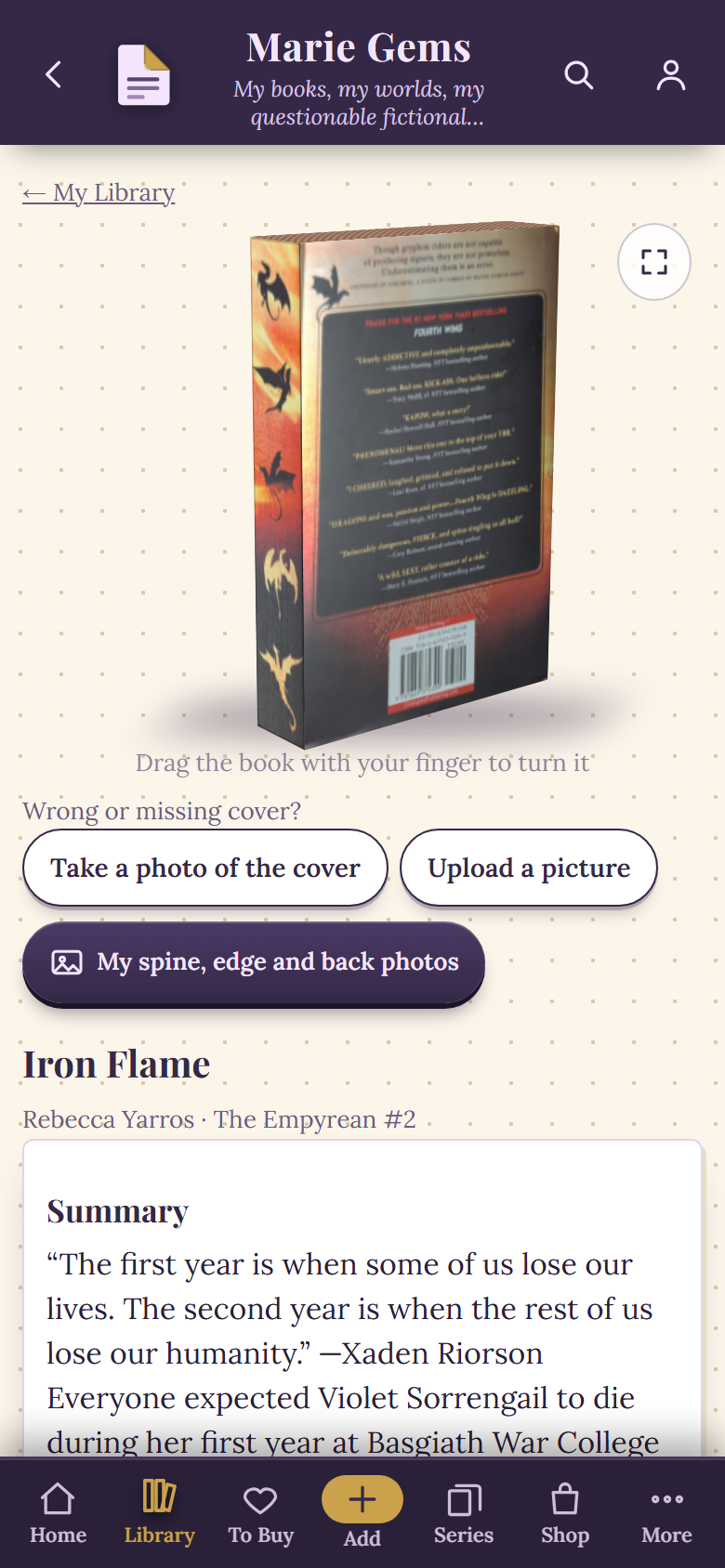
A book turned round to show the photographed edge and back, in a sample library.
Stand a special edition spine out or edge out
You can also choose how each book stands on the shelf. On the book's page, open How it stands on my shelf, or use Style my books right on your shelf. The choices are:
- Cover out or Spine out
- Edge out, so a sprayed edge faces you
- Flat, spine out or Flat, edge out, for books lying on their side
There is also a height slider and Upside down and Mirror switches. Spine out and edge out look best once you have added that photo.
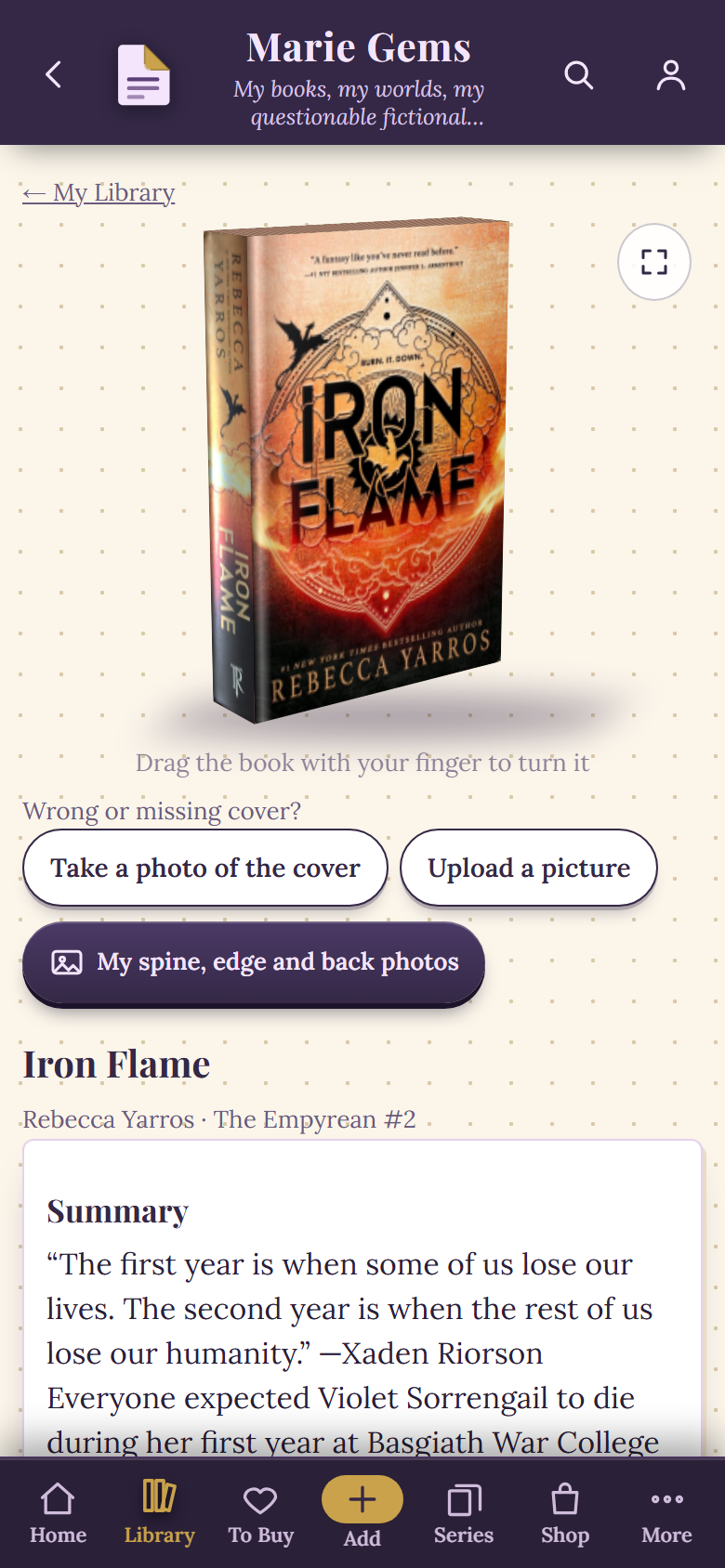
A book page with the photo buttons under the 3D book, in a sample library.
When this is not for you
- You only own standard editions. If the database cover matches your book, you do not need any photos.
- You only want a list. If you track what you have read and do not care how your shelf looks, a plain list is simpler.
- You do not want to take photos. Photos are optional. A book without them keeps its normal cover.
Photos are added one book at a time. Dog-Ear does not find edition photos for you, and it does not tell you whether an edition is limited or exclusive. Your photos are your own record.
A simple way to start
- Pick the three special editions you love most.
- Take an edge photo and a spine photo of each, standing the book up in even light.
- Set each to Edge out or Spine out and look at your shelf. If you would like help arranging the shelf itself, see how to organise a bookshelf you want to look at.
Cataloging the rest of the books is quicker with a scanner: scan your whole bookshelf, then add photos to the editions that deserve them. And if you want the reading journal pages to carry your photos too, see the digital reading journal with stickers.
Make your shelf look like your shelf
Add photos of your own editions and turn them on a 3D book. The free plan holds 50 books. The full version is $29, one time, no subscription.
Get Dog-Ear for $29Questions
Can I add photos of my own copy of a book in Dog-Ear?
Yes. You can add a photo of the front cover, spine, page edge and back cover, either while you add the book or later from the book's page. They show on your 3D book and on your shelves.
How do I show sprayed edges on my bookshelf in an app?
In Dog-Ear, add a photo of the page edge, then choose Edge out for that book in Style my books. The book then stands on your shelf with the edge photo facing out.
What if the cover in the database is the wrong edition?
Replace it with your own photo. On the book's page, tap Take a photo of the cover or Upload a picture, and your photo becomes the cover.
Do I have to add photos for every book?
No. The photos are optional, and you can add them to only the special editions you care about. Books without photos keep their normal cover.
Related: Catalogue your home library without quitting, How to track book series you own, Goodreads alternatives for physical books.