How to create your own book series list and see which books you are missing
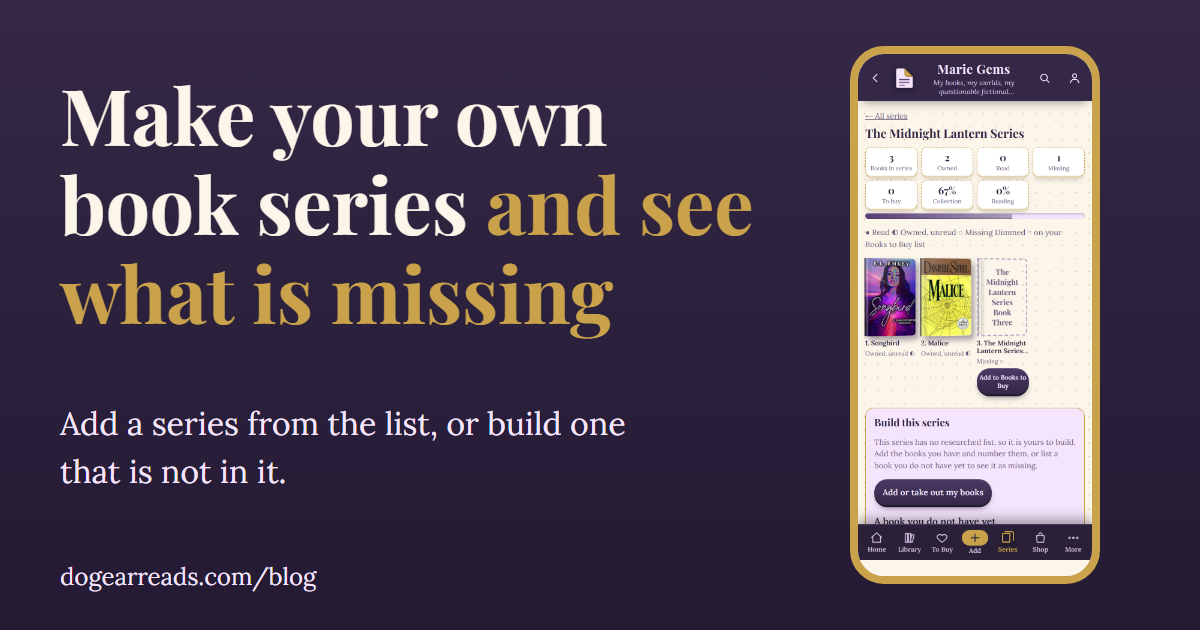
The short answer: to create your own book series list, name the series, mark which books you own and give each a number, then add any book you do not have yet so it shows as missing. In Dog-Ear that is Series, Add a series, then Not in the list? Make your own series. For popular series, search the researched list instead and every book is filled in for you.
When you create your own book series list, it is only useful if it matches the shelf in front of you. Popular series are easy to find online. The self published trilogy, or the group of books you decided belong together, are not, so you build the list yourself. The same method works on paper.
How to create your own book series list by hand
- Write the series name and the author at the top of a page, note or spreadsheet.
- List the books in reading order with their numbers, including the ones you do not own yet.
- Next to each, mark owned, read, or still needed.
The weak point is upkeep, because you must update the list every time you buy or finish a book. For the basics of the Series page, start with how to track book series you own. This post covers the newer tools.
Option 1: add a series from the researched list
Dog-Ear keeps a researched list of full series with every book in order.
- Open Series and tap Add a series.
- Type a series name or an author. Results appear as you type, with the author and the number of books.
- Tap Add. The series page opens with a tile for every book. Books you have show their cover, and the rest show as dashed missing tiles.
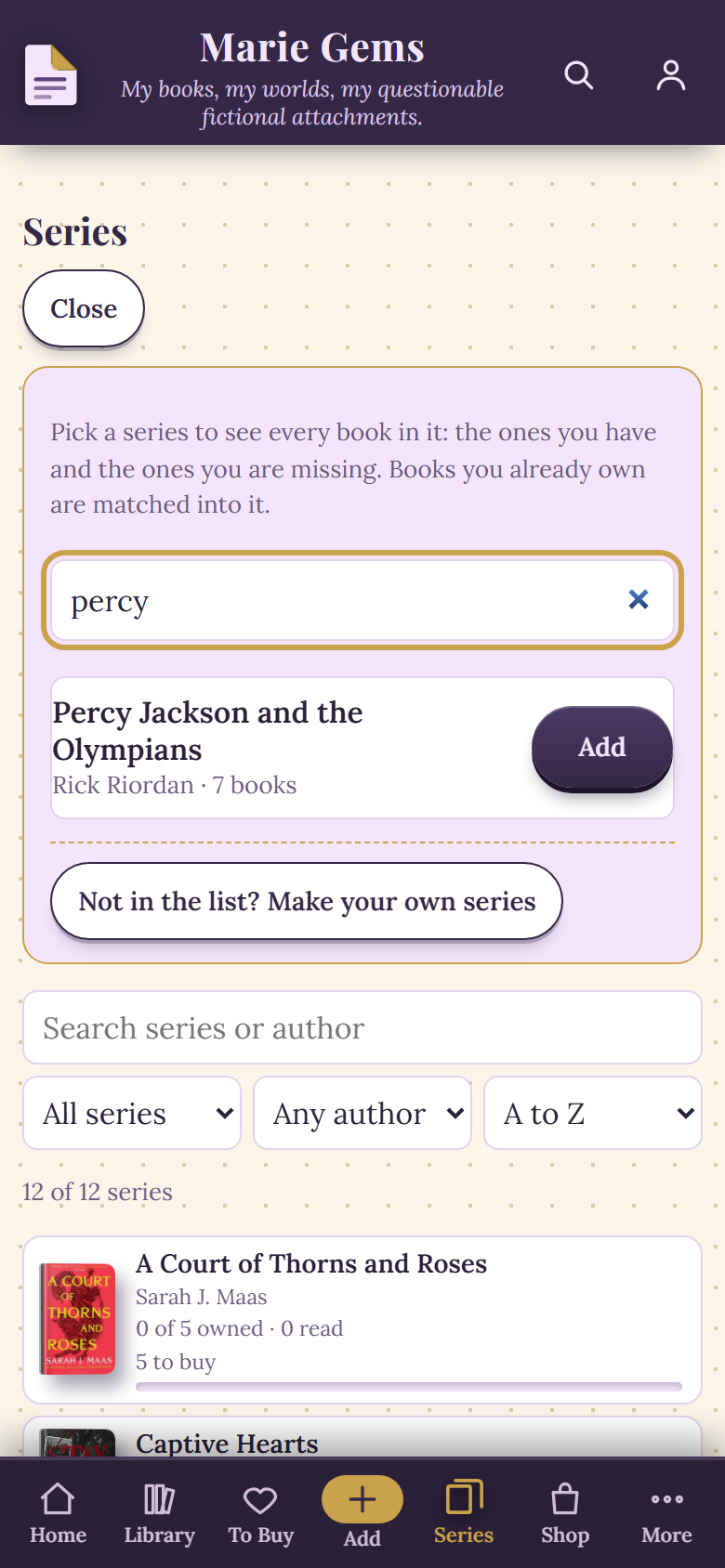
The Add a series search with one result, in a sample library.
Two things are worth knowing. First, the list covers popular series only, so a smaller series may not be in it. As of October 17, 2026 it holds 86 series, and Dog-Ear says so plainly when a search finds nothing. Second, books you already own are matched into the series by title and author, so you do not need to place them yourself. If a series is already on your Series page, the button says Open instead of Add.
Option 2: make your own series when it is not in the list
- On the Series page, tap Add a series, then Not in the list? Make your own series.
- Type a Series name. The author is optional.
- Tap Create series. Your new series page opens.
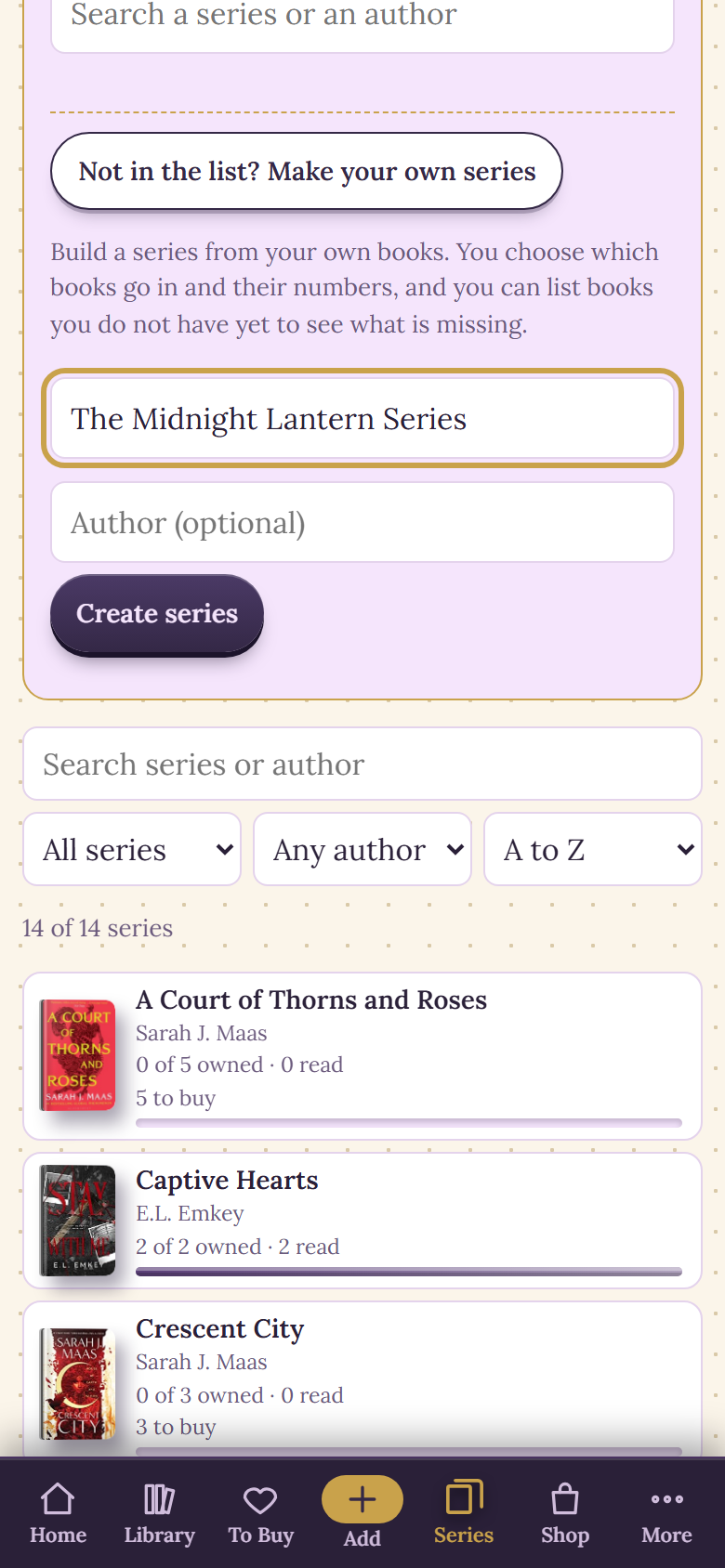
The Make your own series form, with an example series name made up for this post.
If the name matches a series in the researched list, Dog-Ear tells you to use the search and tap Add instead, so you get every book rather than a half empty copy.
Put your books in the series and number them
A new series starts empty and says it is yours to build. The Build this series panel does the rest.
- Tap Add or take out my books. You see your books that are not already in another series, with a search box above them.
- Tick each book that belongs and type its number in the small box. If you leave a number blank, Dog-Ear gives the book the next free number.
- Tap Save my books.
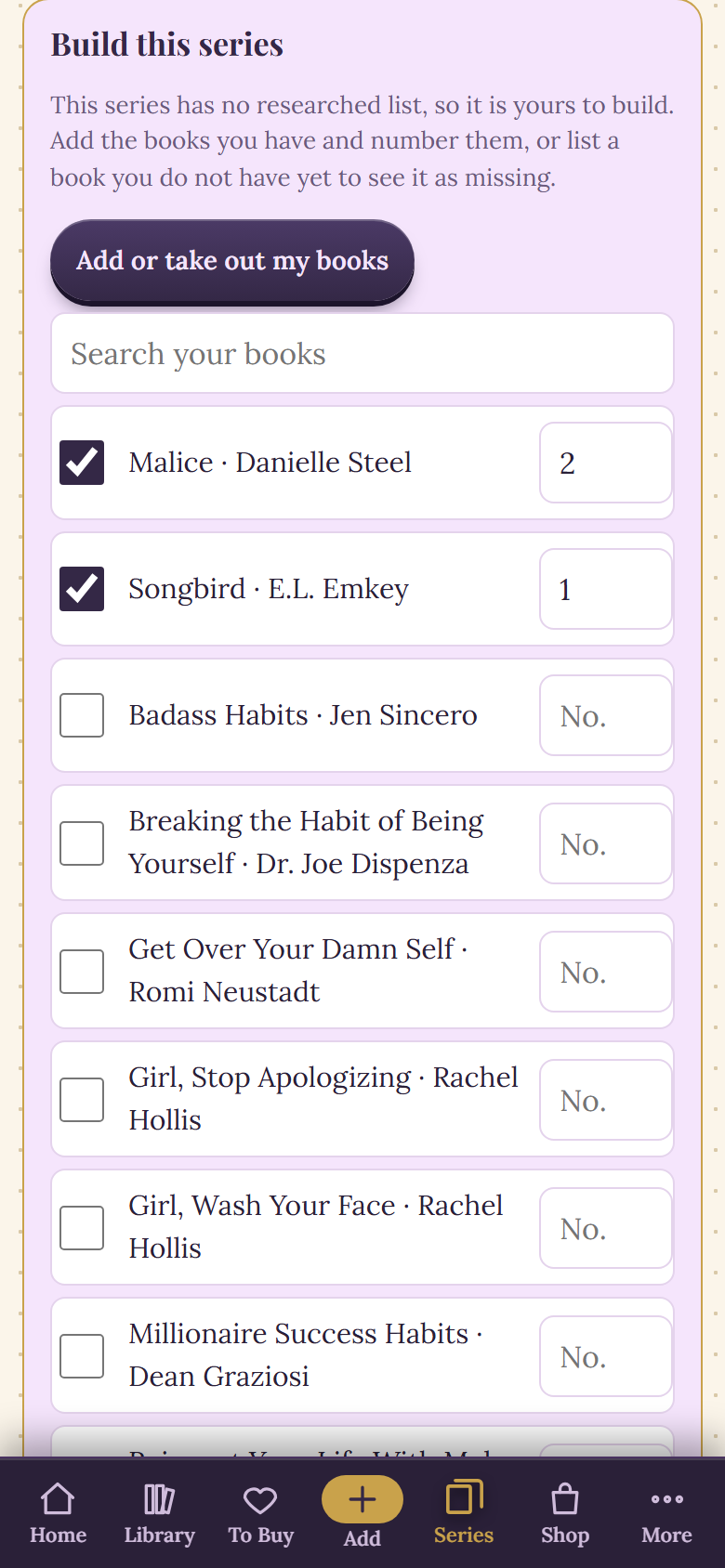
Two ticked and numbered books in a sample library. The two books were picked only to show the steps.
Next, add a book you do not have yet. Under A book you do not have yet, type its title and number, then tap Add a book I do not have yet. It appears as a dashed tile marked Missing, with a button to put it on your Books to Buy list.
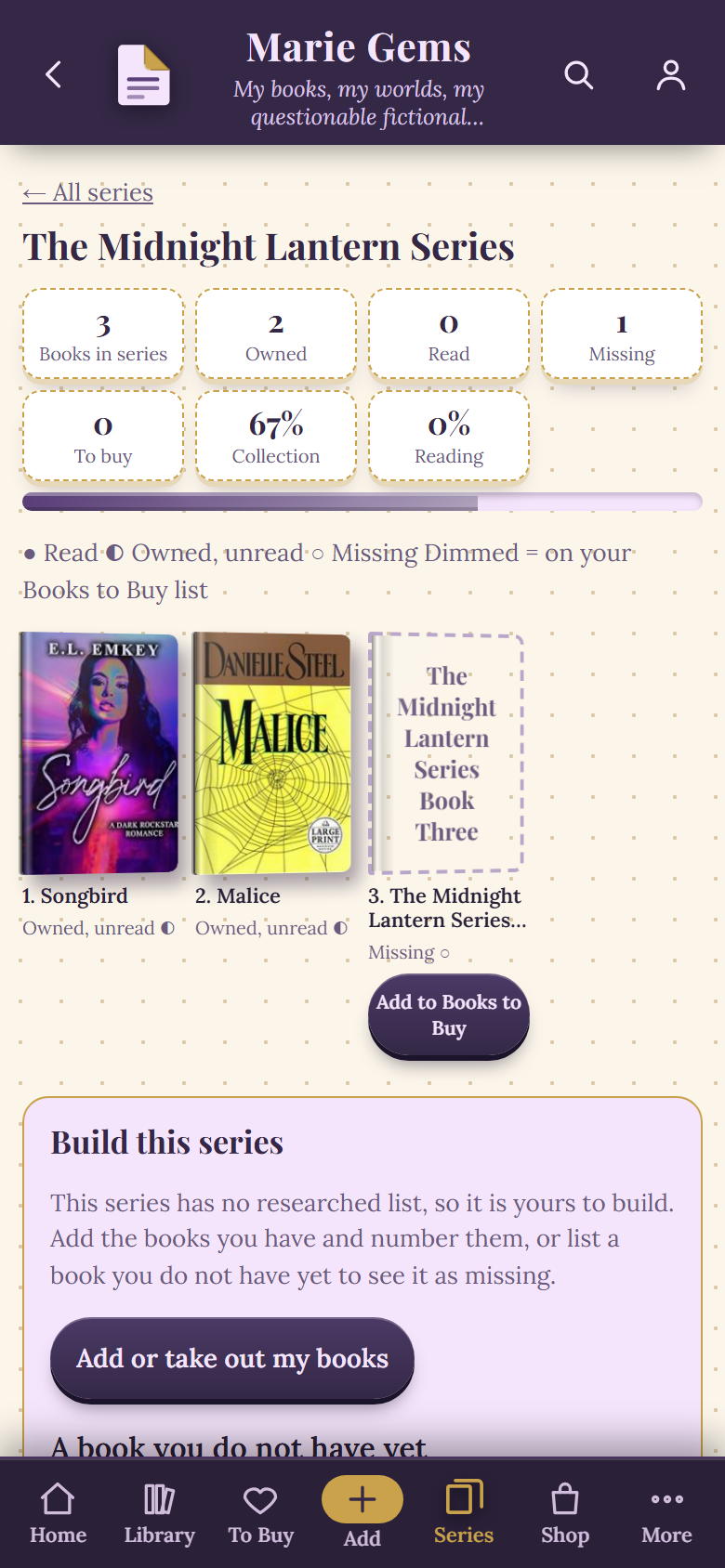
An example series made up for this post, The Midnight Lantern Series, in a sample library: books 1 and 2 owned, book 3 missing. It is not a real series.
The page now shows 3 books in the series, 2 owned and 1 missing. Take off removes a listed book from the list, and unticking a book in the same panel takes it out of the series.
Select several missing books at once
If a series has six gaps, adding them one tile at a time gets old. Open a series with missing books and tap Select several books.
- Tap the dashed tiles you want. Each gets a tick, and a bar at the bottom counts them.
- Under Add as, choose Wish list, Recommended or Preordered.
- Tap the button that says how many books to add, then Done.
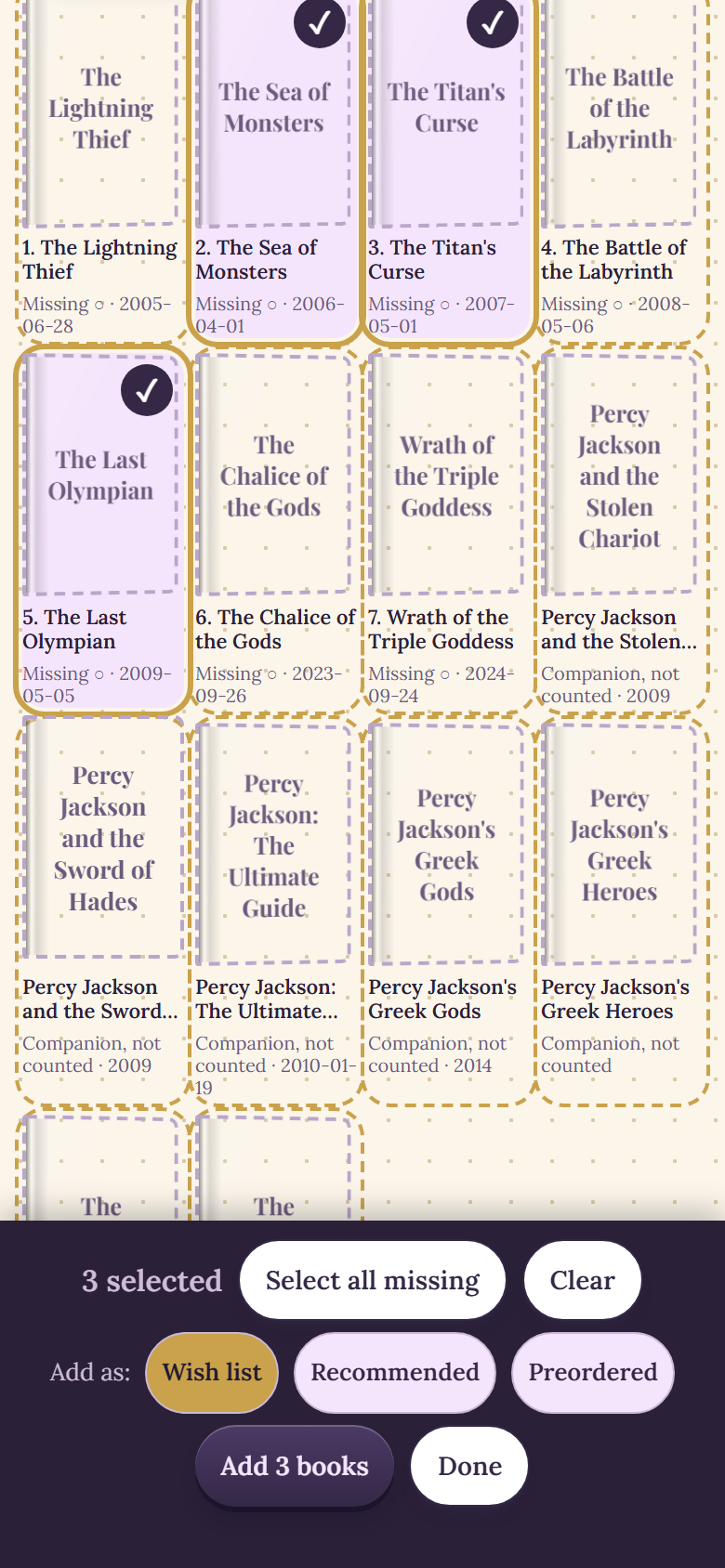
Three missing books ticked, with the Add as choices, in a sample library.
The three choices do different things. Wish list puts the book on your Books to Buy list. Recommended is for books you are only considering. Preordered marks a book you have already ordered but cannot read yet. Select all missing ticks every dashed tile, so look before you tap: it includes companion books that are listed but not counted as missing.
Remove a series without losing a book
If a series is cluttering your page, scroll to the bottom and tap Remove this series. Dog-Ear asks you to confirm and explains what happens.
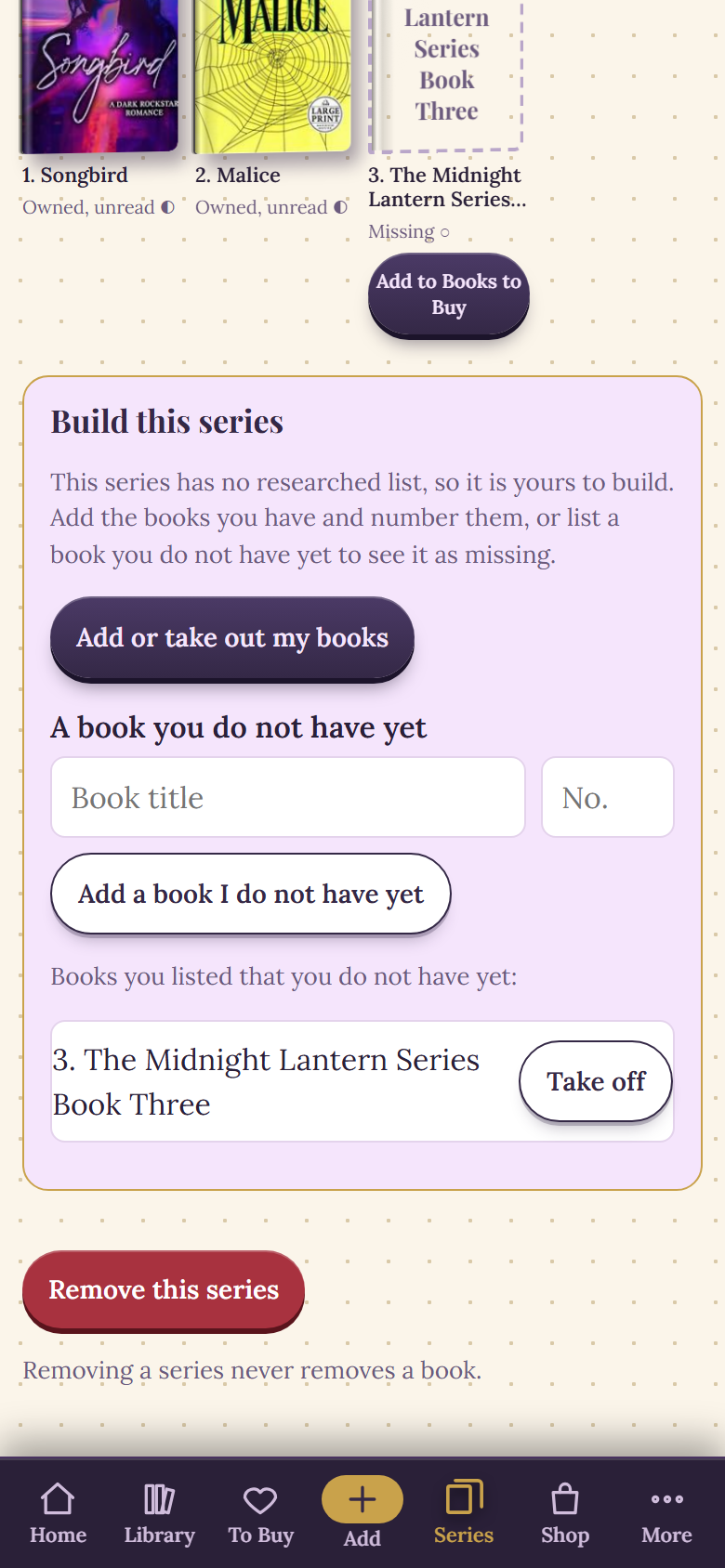
The Remove this series button and its note, in a sample library.
| What you did | What happens to your books | What happens to the series |
|---|---|---|
| Removed a researched series | Every book stays in your library and on your shelves. They are only ungrouped. | It leaves your Series page. New books are not filed into it again until you add it again. When you do, books you own are matched back in by title and author. |
| Removed a series you made | Every book stays, with its series number cleared. | The series and the missing books you listed are gone. To rebuild it, make it again and tick and number your books again. |
We tried this on a sample series of four owned books. The library held the same number of books before and after removing it, and adding the series again put all four back with the collection at 100 percent.
When this is not for you
If you read a series once and move on, a note on your phone is plenty. Manga is a different case, since volume numbers and omnibus editions behave differently. See how to track manga volumes you own. Fill your shelves first with a bookshelf scan, and see what a TBR is for keeping a wish list manageable.
See your whole series at a glance
Add a series or build your own and know what is missing before you reach the bookstore. $29, one time, no subscription.
Get Dog-Ear for $29Questions
How do I create my own book series list?
In Dog-Ear, open Series, tap Add a series, then Not in the list? Make your own series. Type a name, tap Create series, then tick the books you own and number them. You can also list a book you do not have yet so it shows as missing.
Can I add a series that is not in the researched list?
Yes. The researched list covers popular series only, so a smaller series may not be there. You can make your own series and choose which books go in it and what number each has.
If I remove a series, do I lose the books?
No. Remove this series only ungroups the books. They stay in your library and on your shelves. New books are not filed into that series again until you add it again.
Do wish list and recommended books count toward the free plan limit?
Yes. The free plan holds 50 books, and books you add to your wish list or as Recommended count toward that, including ones added from a Series page.
Related: How to track book series you own, How to scan your whole bookshelf, How to track manga volumes you own, Catalogue your home library without quitting, What is a TBR and how to get through it.