How to decorate a virtual bookshelf with your own pictures
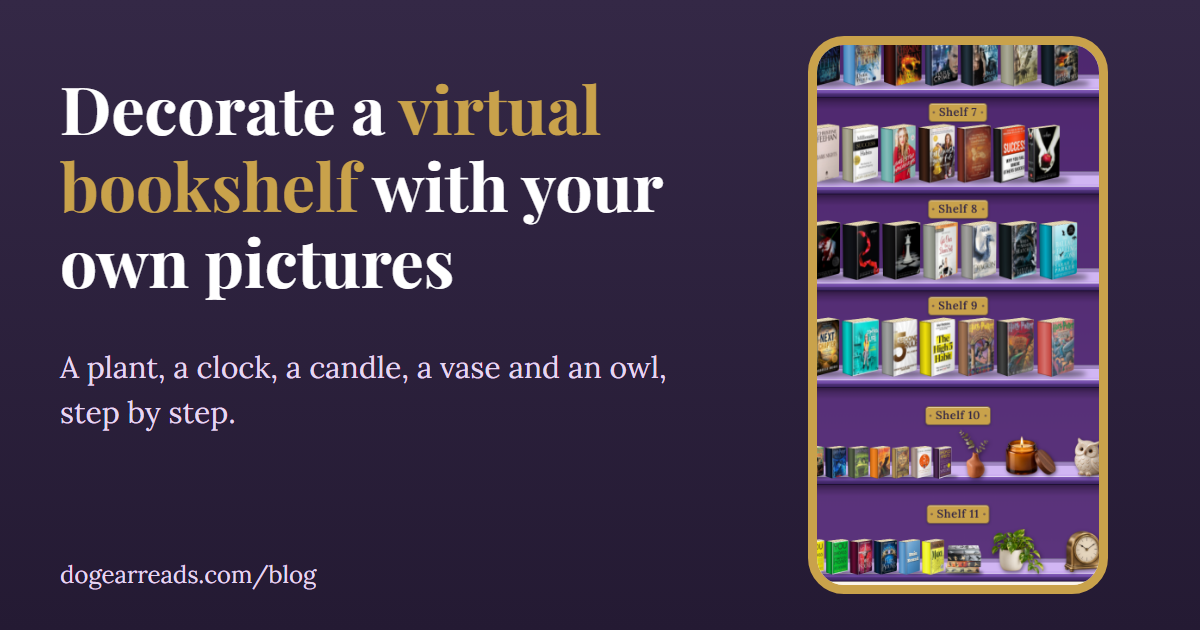
The short answer: to decorate a virtual bookshelf with your own pictures in Dog-Ear, open My Library, tap Customize shelf, then Decorate on my shelf, and tap Add my own picture. Choose an image, then tap Add decoration, pick a shelf, and tap your picture to put it there. A transparent PNG works best.
The decorations that come with Dog-Ear are lovely, but a shelf feels like yours when it holds your things: a plant that looks like the one on your windowsill, a candle in the color you like, an owl that has nothing to do with anyone else's shelf. Here is how to add them, using five sample pictures: a pothos plant, a brass clock, a terracotta vase, a candle and a ceramic owl.
Before you start
- A picture of one object. A plant, a clock, a candle, a mug, a drawing. One thing per picture works best.
- Ideally a transparent PNG. That means the object has no backdrop at all. Dog-Ear saves these as they are and skips the extra screens. Most image tools and free background remover sites can export one. The five samples in this post are AI generated images saved as transparent PNGs.
- Any plain background will do if it is not transparent. Dog-Ear can take a plain backdrop away for you. It cannot do much with a glowing or shaded one (more on that below).
Step 1: Open Decorate mode
Go to My Library, tap Customize shelf, then tap Decorate on my shelf. A panel called "Decorate your shelf" opens at the bottom, right over your real shelf. It switches your library to My arrangement so you see your changes as you make them.
Step 2: Tap Add my own picture
In the panel you will find a button called Add my own picture, with the line "Put your own photo or drawing on a shelf." Tap it and choose your image.
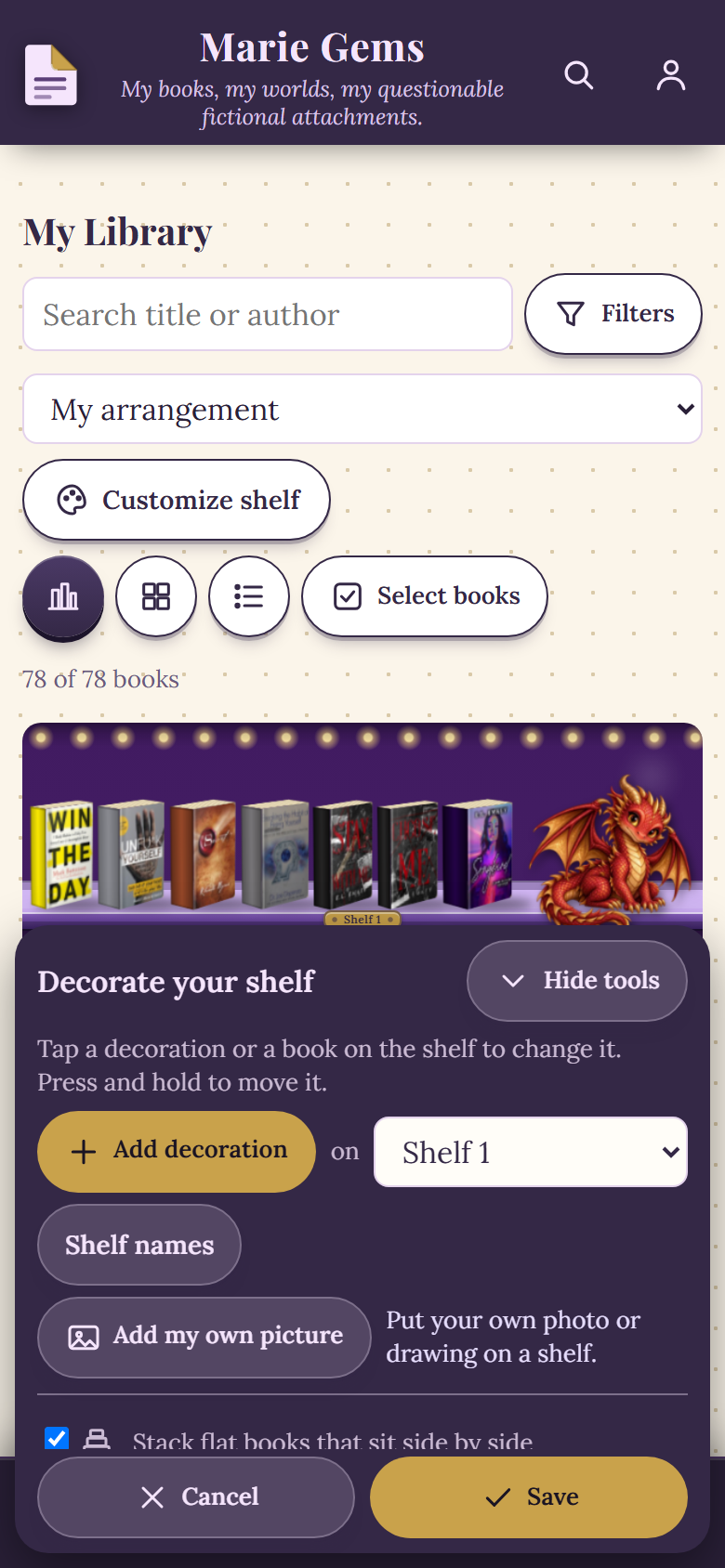
The Decorate panel, with Add my own picture in the middle, in a sample library.
If your picture is a transparent PNG, that is all. Dog-Ear saves it straight away and says "Saved. Tap it to put it on your shelf." All five of the sample pictures here were like this, so none of them needed the next two screens.
Step 3: For any other picture, crop it and take the background away
A picture with a backdrop goes through two screens. First you crop: drag the gold box so it holds just the item, then save. There is also Turn, Use the whole photo, and a Straighten slider.
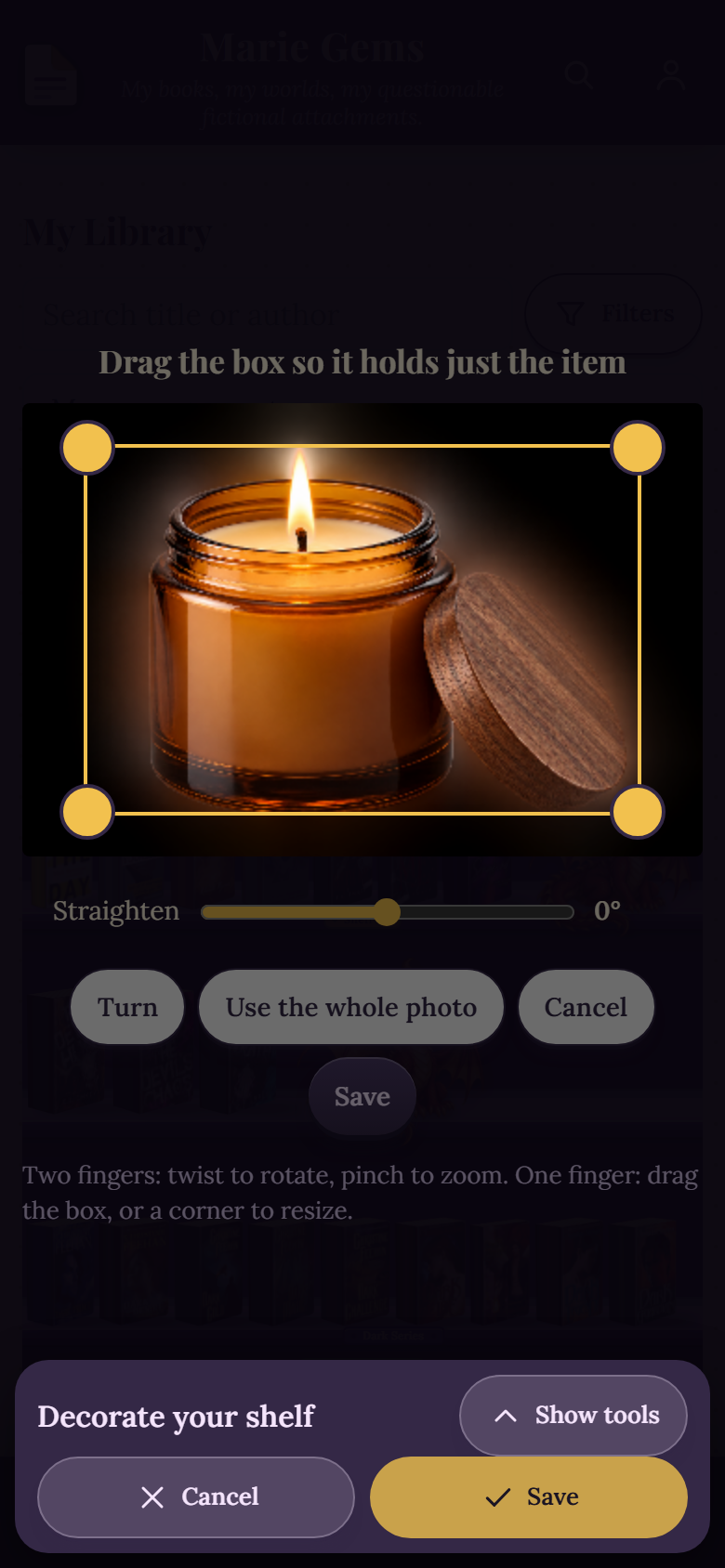
The crop step, shown here with a test copy of the candle picture that has a dark backdrop.
Next comes Take the background away. A slider called Remove plain background starts at 28. Slide it until just the item is left, type a name if you like, and tap Save. Keep as is sets it to 0, which keeps the picture exactly as it is.
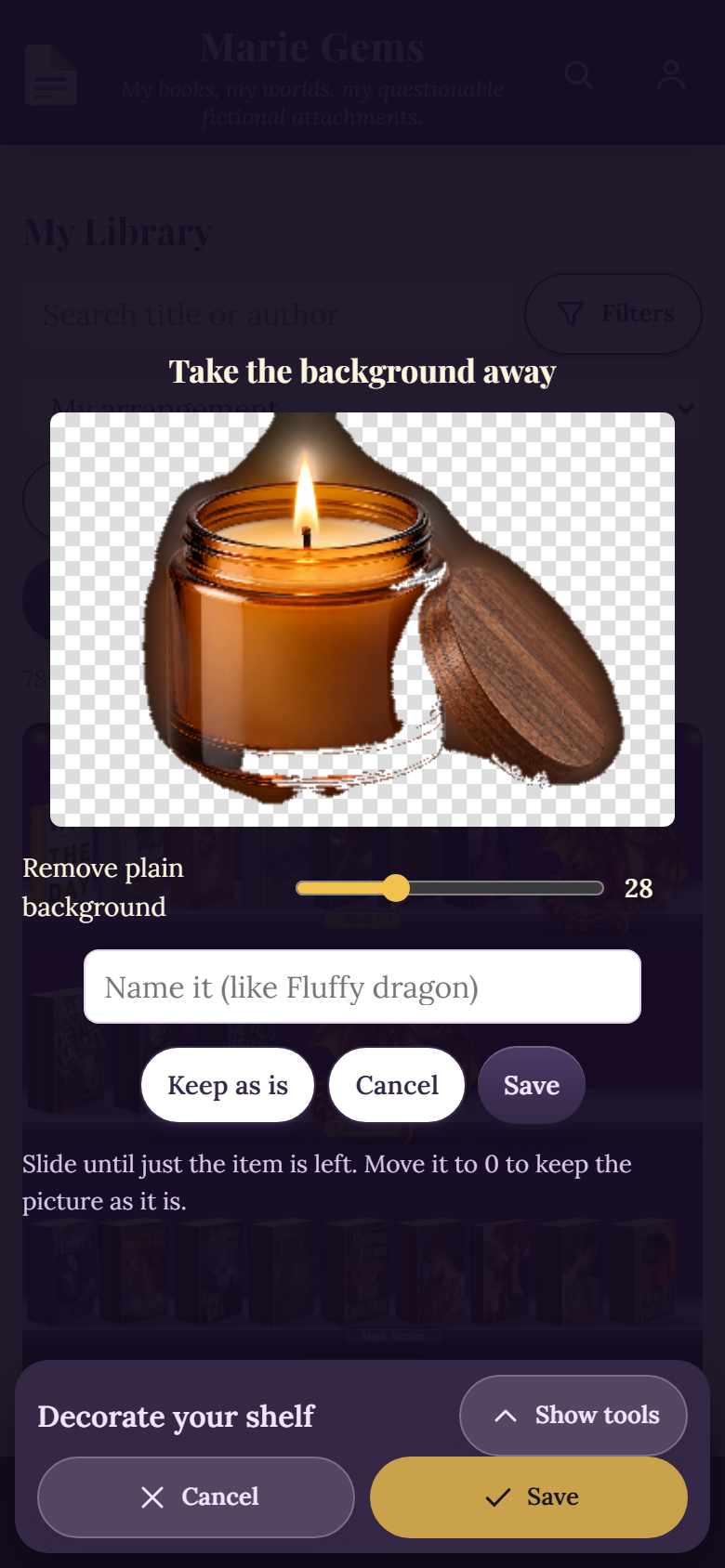
The background screen on a candle picture with a glowing dark backdrop. Nothing here was saved.
How well does the slider work?
It removes a plain color that touches the edges of the picture. That makes it good at plain backdrops and weak at glows. I tested it on the plant, the vase and the candle with a dark glowing backdrop put back behind them, and with a flat black one.
| Picture backdrop | What happened | What to do |
|---|---|---|
| Transparent PNG | No crop and no slider. Clean edges on the shelf. | Best choice. |
| Flat plain color (black) | The plant came out clean at the default 28. The candle lost part of its dark glass base at 28 and kept it at about 8 to 14. | Start at 28, then lower the slider if the bottom of the item starts to vanish. |
| Glowing dark backdrop | A haze stayed around every picture at every setting I tried. Higher settings started to eat the item itself, such as the candle jar and the vase leaves, before the haze was gone. | Do not fight it. Use a transparent PNG or a plain backdrop instead. |
Interior gaps are not cleaned up, because the slider only removes backdrop that connects to the edges.
Step 4: Put the picture on a shelf
Once saved, your picture appears in the list under Add decoration, after the built in ones. Pick a shelf in the box next to Add decoration (it says "on Shelf 1" until you change it), then tap the picture. It lands on that shelf and stays picked, so you can adjust it right away.
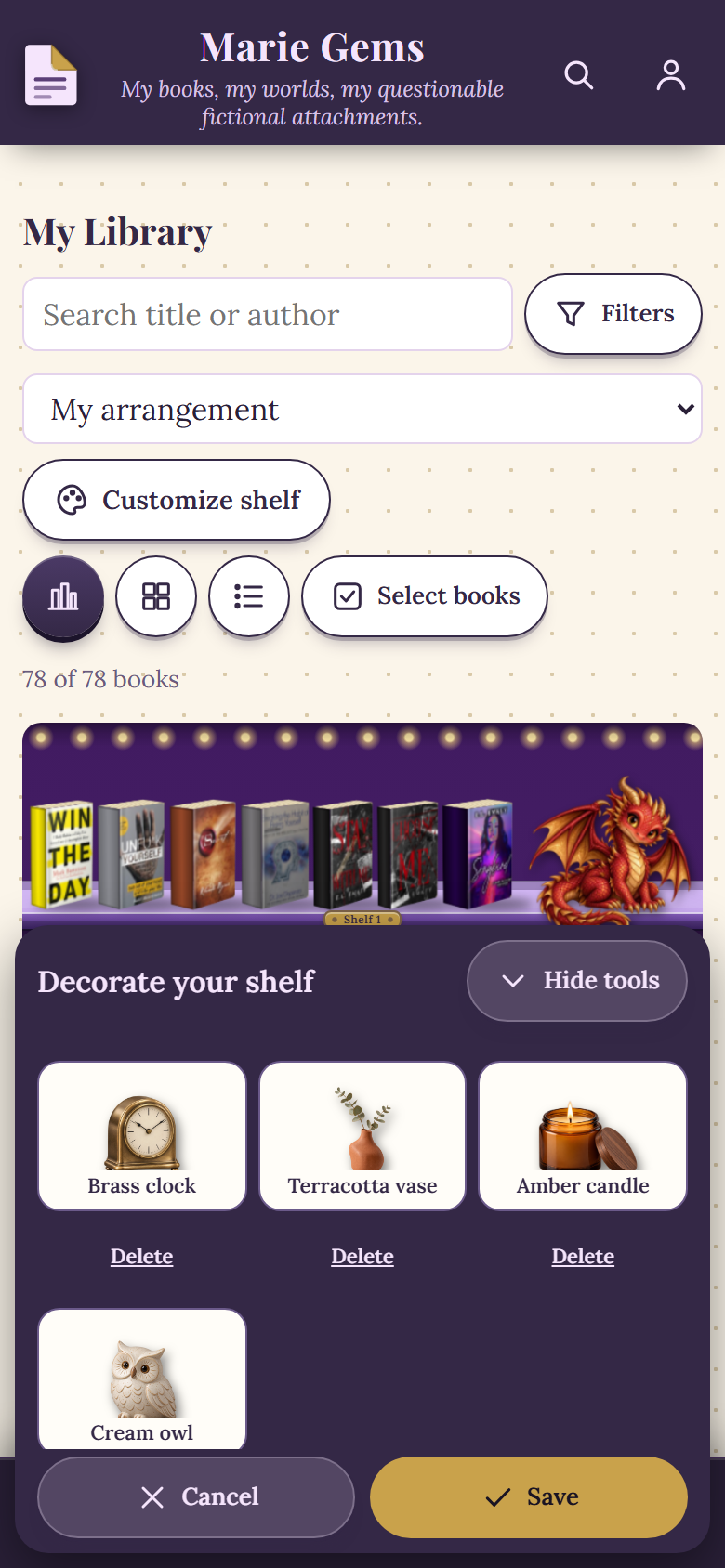
Your saved pictures in the Add decoration list, with Delete under each one.
Step 5: Size it, nudge it, save it
- Smaller and Bigger change the height in steps of 10 percent, and the change applies to every copy of that picture.
- Raise or lower moves it up or down on the shelf.
- Left and Right move it along the shelf. The panel also says you can press and hold a decoration on the shelf to move it.
- Remove from shelf takes it off but keeps the picture in your list.
When you are happy, tap Save. Cancel puts the shelf back the way it was. I checked that too: after moving the owl, Cancel returned it to where it started.
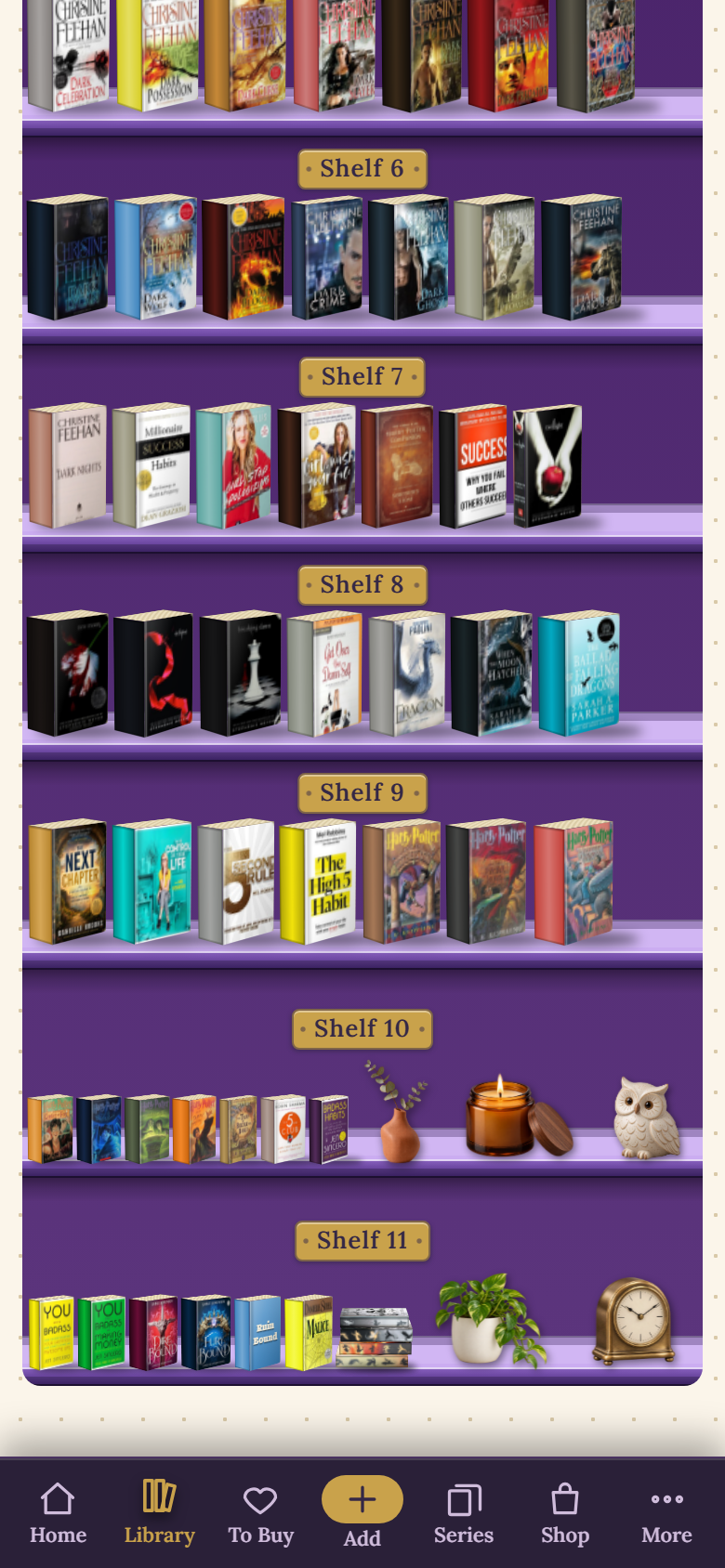
All five pictures on the shelf, in a sample library.
Good to know
- Names and numbers. Names can be up to 40 characters, and you can keep up to 60 of your own pictures.
- Deleting. Tap Delete under a picture in the list. Nothing is removed until you tap Save, and Cancel brings it back.
- Crowded shelves. When you add more to a row, Dog-Ear shrinks the books on that row to fit them, so a row with three decorations has small books. Put a few on a row with fewer books, or move one to another shelf.
- Another phone or browser. If your decorations do not show, open the arrangement menu above your shelf and choose My arrangement.
- The free plan. Dog-Ear's code has no check that stops a free account from adding its own pictures, and the 50 book limit counts books, not decorations.
- The built in decorations such as the dragon cannot be recolored, so the way to get a different look is to upload your own picture.
Who does not need this
If the built in decorations already look right, skip it. If you like a bare shelf of spines, skip it as well. This is a nice extra for making a shelf feel like yours, and it has nothing to do with tracking what you read. For arranging the books themselves, see how to organise a bookshelf you want to look at.
Make your shelf look like yours
Add your own plant, candle and owl to your shelves. $29, one time, no subscription.
Get Dog-Ear for $29Questions
How do I decorate a virtual bookshelf with my own pictures?
In Dog-Ear, open My Library, tap Customize shelf, then Decorate on my shelf. Tap Add my own picture, choose an image, then tap Add decoration, pick a shelf and tap your picture to put it there.
Does my picture need a transparent background?
It helps. A transparent PNG is saved as it is and looks cleanest on the shelf. Other pictures go through a crop and a Remove plain background slider, which works well on plain backdrops but leaves a haze on glowing ones.
Can I add my own decorations on the free plan?
Dog-Ear's code has no check that blocks free accounts from adding their own pictures. The free plan limit is 50 books, and decorations are not books, so they do not count toward it.
How many pictures can I add?
Up to 60 of your own pictures. When you reach 60, delete one to add another.
Can I change the color of the built in decorations?
No. Built in decorations such as the dragon cannot be recolored, so the way to get a different look is to upload your own picture.
Related: How to organise a bookshelf you want to look at, Special editions and photos of your own copy, How to scan your whole bookshelf.